AI Generator
Pro plan. View plans.
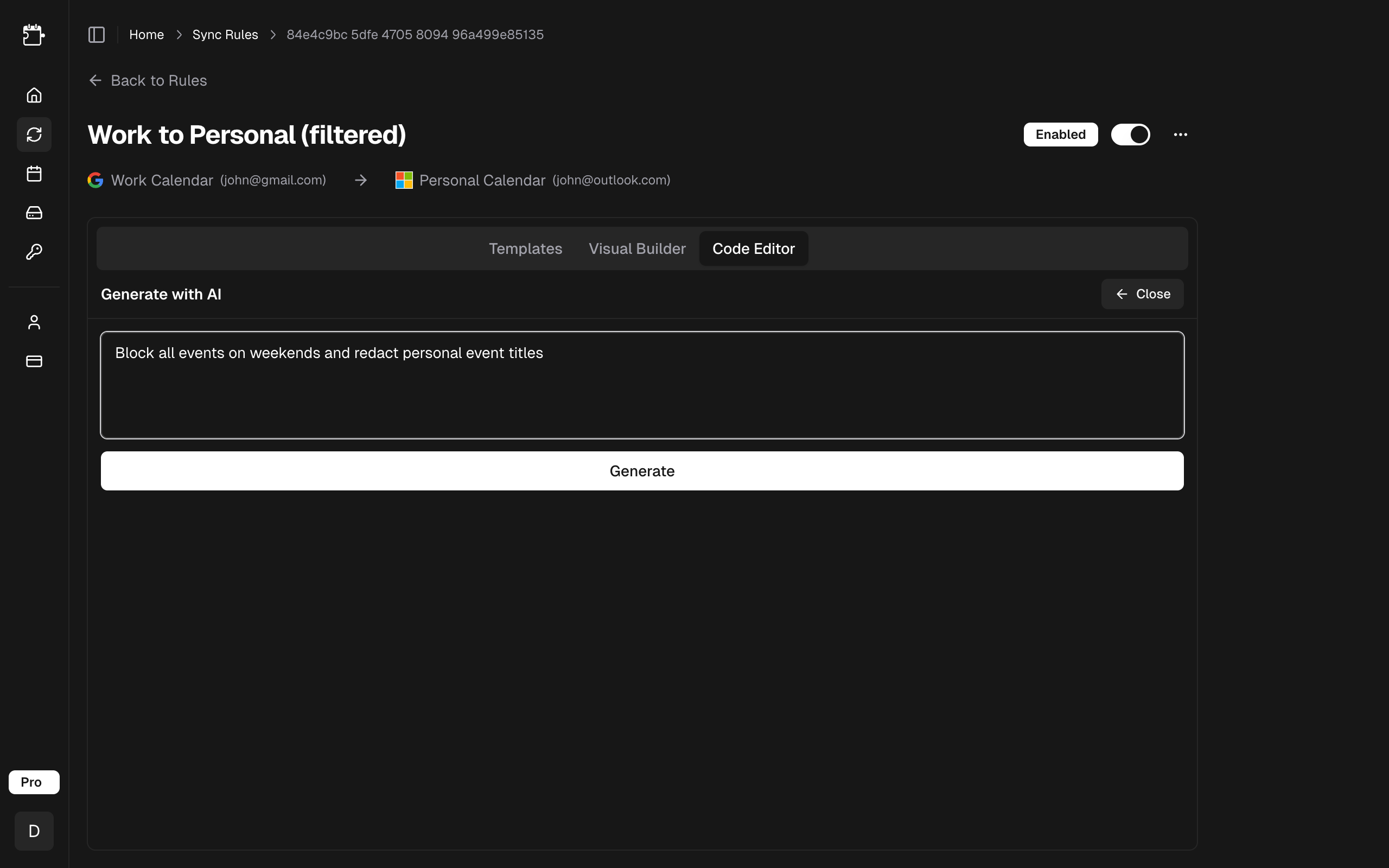
The AI Generator creates a gate function from a plain-English description. Describe what events to filter, block, or transform, and the editor generates the TypeScript for you.
How to Use
- Navigate to a sync rule's gate function settings
- Select the AI tab

- Type your prompt describing the gate function behavior you want
- Click Generate
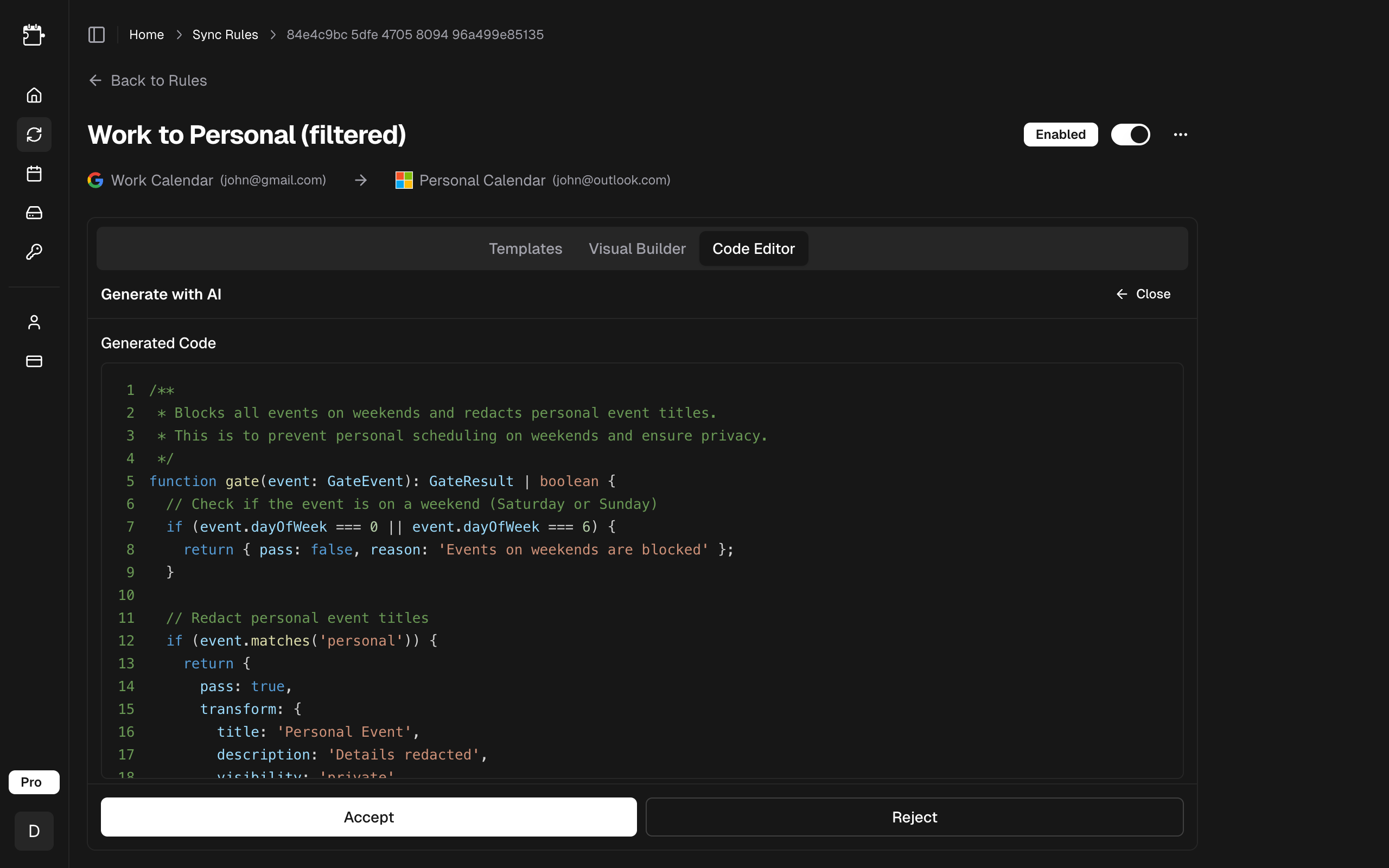
- Review the generated code
- Click Accept to save the gate function, or Reject to try again with a different prompt
Writing Good Prompts
The quality of the generated gate function depends on your prompt. Be specific about what events to filter and what should happen to them.
Good Prompts
| Prompt | What It Does |
|---|---|
| "Block all events on weekends and after 6pm on weekdays" | Filters by day of week and hour |
| "Redact the title of events with fewer than 3 attendees to just say 'Meeting'" | Transforms small meetings for privacy |
| "Only sync events that have 'Team' in the title and are at least 30 minutes long" | Combines text matching with duration filtering |
| "Block cancelled events and set all-day events to show as free" | Handles multiple event types differently |
| "Add a 15-minute buffer before and after every meeting" | Pads synced events with pre/post-event time |
Tips for Better Results
- Be specific about the action -- say "block", "pass", "redact", or "transform" rather than vague instructions
- Mention specific properties -- use words like "title", "attendees", "duration", "weekday" to guide the AI toward the right event properties
- Describe edge cases -- if you want different behavior for different events, describe each scenario
- Keep it focused -- one prompt should describe one logical filtering behavior
Prompts to Avoid
| Prompt | Why It's Too Vague |
|---|---|
| "Make my calendar better" | No specific filtering criteria |
| "Clean up events" | Unclear what "clean up" means |
| "Do something smart" | No actionable instructions |
Review and Accept
After the AI generates code, you'll see a preview of the TypeScript gate function. Take a moment to review it:
- Does the logic match what you described?
- Are the correct event properties being checked?
- Is the action (pass/block/transform) what you intended?
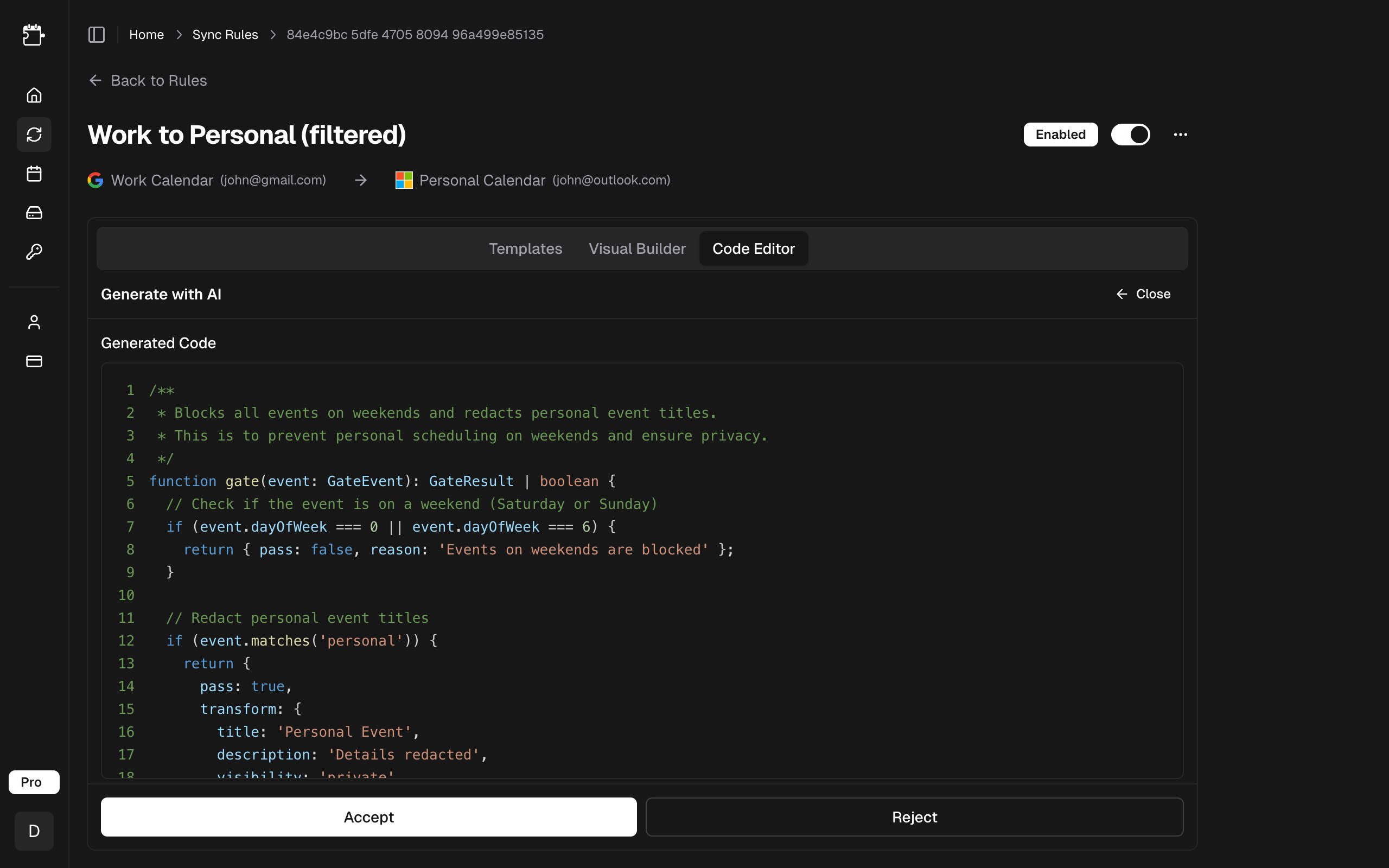
- Accept saves the generated code as your sync rule's gate function
- Reject discards the generated code and lets you write a new prompt
If the generated code is close but not quite right, accept it and then fine-tune it in the Code Editor. You don't have to get it perfect in one generation.
Rate Limits
AI generation is limited to 30 generations per day on the Pro plan. The limit resets daily at midnight UTC.
Each time you click Generate, it counts as one generation regardless of whether you accept or reject the result. Plan your prompts carefully to make the most of your daily limit.
After Generation
Once you accept a generated gate function, the code appears in the Code Editor tab where you can:
- View and understand the generated logic
- Make manual edits and refinements
- Test the function against sample events using the built-in test runner
- Save further changes
The AI Generator is a starting point -- the Code Editor is where you refine and perfect your gate function.
Related
- Code Editor — refine generated code with autocompletion and tests.
- Templates — ready-made presets for common scenarios.
- Property Reference — every property a generated function can read.