Creating Sync Rules
A sync rule is the core building block of CalendarPipe. It connects a source calendar to a target calendar through a gate function that filters and transforms events as they flow between the two.
How Sync Rules Work
When a sync rule is active, CalendarPipe periodically reads events from the source calendar and passes each one through the gate function. Events that pass the gate are synced to the target calendar. Events that are blocked by the gate are skipped.
Source Calendar --> Gate Function --> Target Calendar
                   (filter/transform)
Events created by a rule don't travel further
When a rule copies an event into a target calendar, that copy stays put. No other rule will pick it up and copy it onward.
This is what makes two-way setups safe. If you sync Work → Personal and Personal → Work, neither rule treats the other's copies as new events, so the two calendars settle instead of echoing back and forth and multiplying copies.
It also means rules don't chain. If you sync A → B and B → C, events from A reach B but do not continue on to C. To get them to C as well, add an A → C rule.
Creating a Rule
1. Navigate to Sync Rules
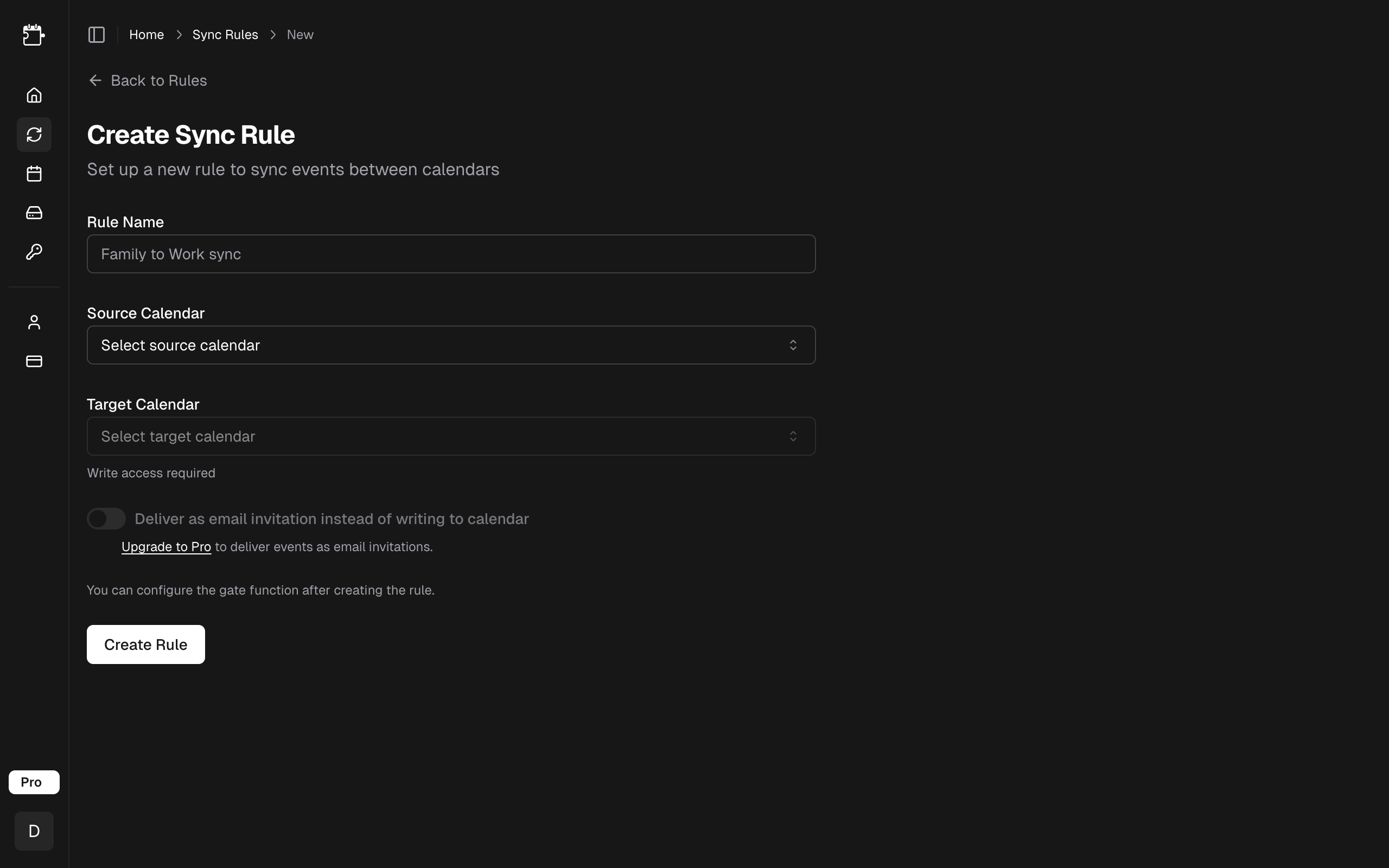
Go to Sync Rules in the CalendarPipe sidebar and click Create Rule.
2. Select source and target calendars
Choose which calendar to read events from (source) and which calendar to write events to (target). Both calendars must already be connected to CalendarPipe.
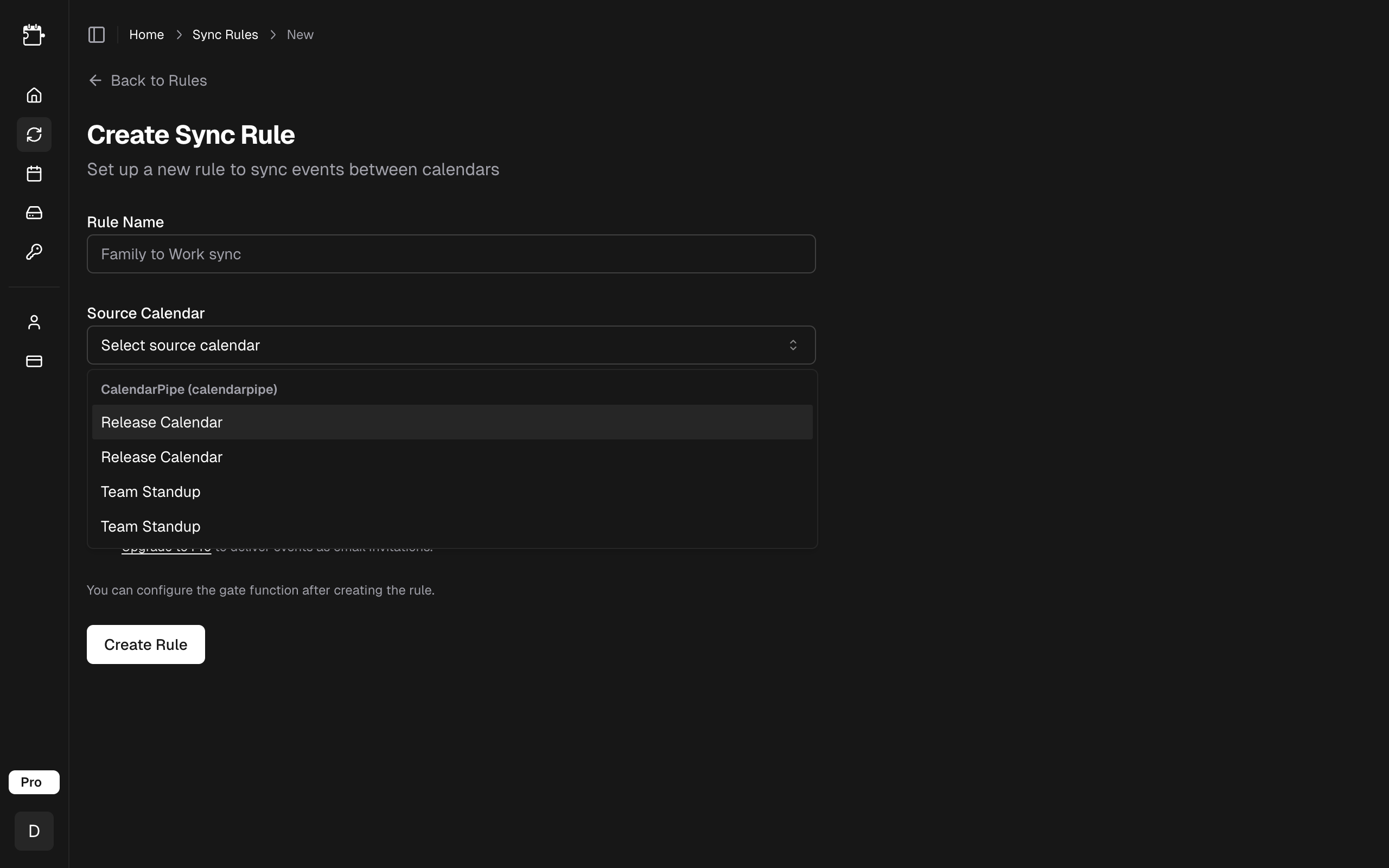
Choose a descriptive name that makes the rule's purpose clear at a glance:
- "Work to Personal (filtered)"
- "Team Calendar to My Calendar (free)"
- "Sports Schedule to Personal"
3. Choose a delivery mode
CalendarPipe supports two delivery modes that control how synced events reach the target calendar:
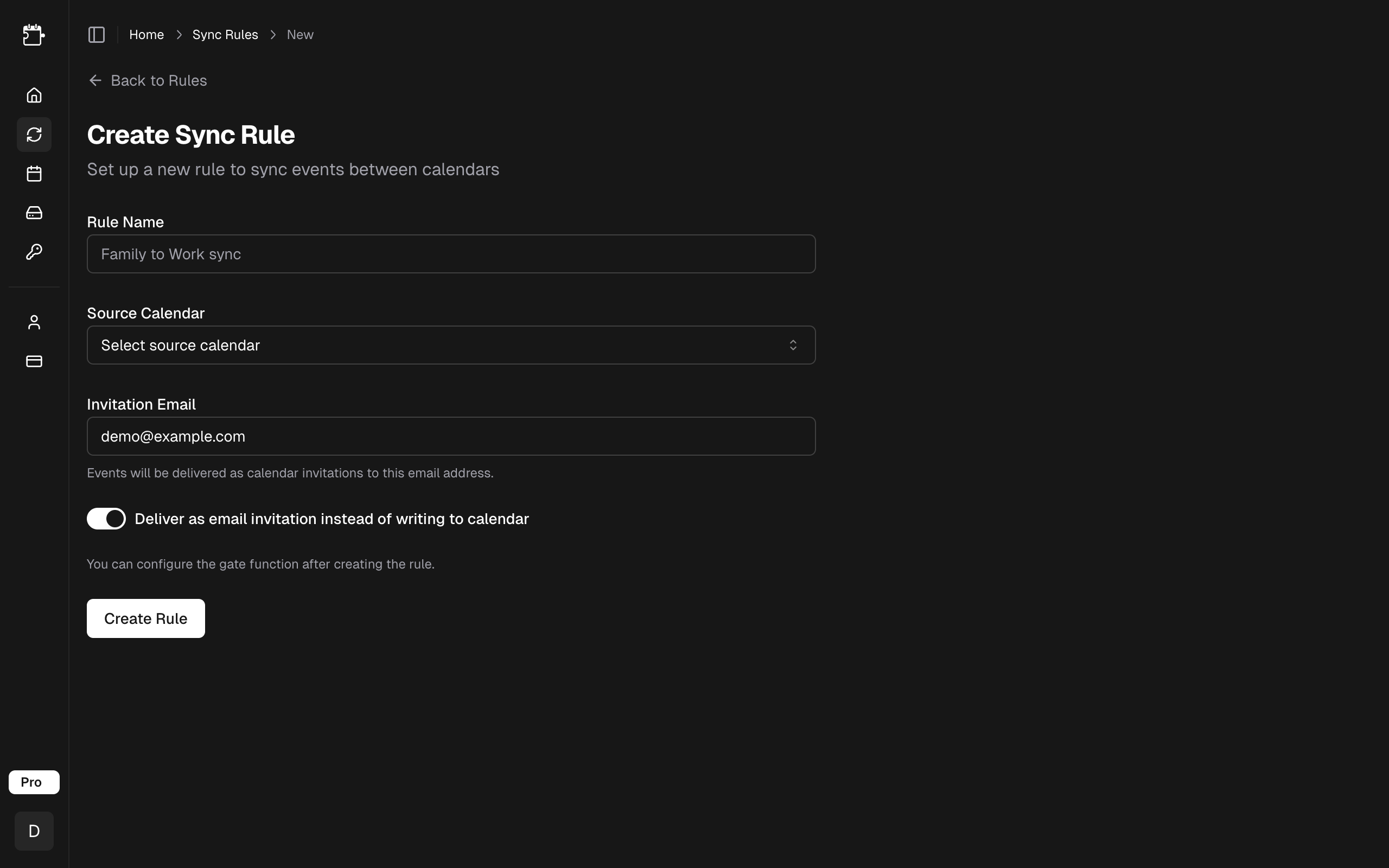
- Direct (all plans) -- CalendarPipe writes events directly into the target calendar via the provider's API.
- Invitation (Pro) -- CalendarPipe sends events as standard email invitations (
.ics) to a chosen address. Useful when the target calendar can't be connected via OAuth (e.g. a locked-down work calendar) or when you're syncing into someone else's inbox.
Both modes work with any source -- including ICS feeds, which can be synced into a connected Google/Microsoft/Apple/hosted target via Direct delivery, or routed to an email address via Invitation delivery.
See Delivery Modes for a full comparison and guidance on which mode to pick.
4. Add a gate function
Every sync rule needs a gate function. Choose from:
- Templates -- Pre-built gate functions for common use cases
- Visual Builder -- Build rules with a point-and-click interface
- Code Editor -- Write custom TypeScript gate functions
- AI Generator -- Describe what you want in plain English (Pro only)
For your first rule, start with the Copy All Events template, which syncs everything without modification. You can customize the gate function later.
To learn more about gate functions, see the Gate Functions overview.
Managing Rules
Once created, you can manage your sync rules from the Sync Rules page:
- Enable/Disable -- Toggle a rule on or off without deleting it
- Edit -- Change the gate function, delivery mode, or rule name
- Delete -- Permanently remove the rule and stop syncing
Event Colour
Each rule can give the events it writes a colour, so several rules feeding the same calendar stay tellable apart. Click the coloured dot beside the rule's name and pick one; "No colour" leaves events with the destination calendar's own default.
Changing the colour re-colours events the rule has already synced, not just new ones — the change lands on the rule's next sync. The rule owns the colour of the copies it writes, so if you recolour one of those copies by hand in your calendar, the next sync puts it back.
Colours are supported on Google Calendar targets only, so the dot only appears on those rules. Outlook has no per-event colour, and Apple/CalDAV and hosted calendars cannot carry one.
For a colour that depends on the event rather than the rule, a gate function can override it per event with transform.color.
Sync Intervals
CalendarPipe checks for changes at regular intervals:
| Plan | Sync Interval |
|---|---|
| Free | Every 15 minutes |
| Pro | Every 5 minutes |
When changes are detected in the source calendar (new events, updates, or deletions), CalendarPipe applies the gate function and updates the target calendar accordingly.
ICS feed sources are the one exception: a feed that keeps serving the same events is checked less often until it changes. See ICS Feeds.
Sync Window
Each sync rule fills in a rolling window of upcoming events:
| Plan | Sync window |
|---|---|
| Free | 14 days |
| Pro | 90 days |
This is a floor, not an average. CalendarPipe actually fetches about a week further out than the number above, and refreshes again before coverage can fall back to it — so the figure holds at every moment, not just right after a sync. Refreshes are automatic; there is nothing to trigger manually.
On Pro you can widen it in Settings, up to 180 days. The window applies to every rule on your account — one setting, not one per rule.
Rules using Invitation delivery never go beyond 30 days, whatever your plan or Settings choice. Each event write in that mode is an email, so the window sets how much mail a sync sends. The cap applies on top of everything above — widening the account setting does not lift it.
What the window actually limits
Two things are not limited by it:
- Events you create or change. On Google, Outlook and Apple sources these sync on the next interval however far ahead they are — book a flight eight months out and it copies straight over.
- Events already synced. Narrowing a window never removes anything already in the target calendar; it only stops refreshing the far end.
What the window does govern:
- Recurring events, whatever the source. A weekly meeting has no natural end, so CalendarPipe materialises its occurrences out to the window and adds more as the window advances. This is the main reason the window exists.
- Events that were already on the calendar further ahead than the window when the rule first ran. They are picked up as the window reaches them.
These sources are re-read in full on each sync rather than sending incremental changes, so the window applies to all their events. A newly added far-future event on one of them waits for the window to reach it.
Apple works this way on a rule's first sync. After that it sends incremental changes like Google and Outlook, so later edits reach the target calendar however far ahead they sit.
Apple and ICS sources sync single events only. A repeating event is skipped rather than expanded into occurrences, so the window above never applies to it. Google and Outlook sources are unaffected.
Why a window at all?
An unbounded fetch would mean expanding every recurring series indefinitely and re-reading the entire calendar on every cycle. A bounded window keeps each sync fast and predictable, and the rolling refresh means the coverage you have never silently decays past the guaranteed figure.
Limits
| Plan | Max Sync Rules |
|---|---|
| Free | 1 |
| Pro | Unlimited |