Import ICS Feeds
An ICS feed is any URL that serves a calendar in the iCalendar (.ics) format. Subscribing to one in CalendarPipe is a read-only, one-way connection — events flow from the feed in but never the other way.
ICS feeds are available on all plans and count toward your connection limit (2 on Free, unlimited on Pro).
Common sources include Google Calendar public addresses, sports schedules, university course calendars, holiday calendars, conference agendas, and Meetup groups.
Connect
1. Get your ICS feed URL
Copy the feed URL from the calendar you want to import — see Find your feed URL if you are not sure where it lives. https://, webcal:// and webcals:// all work; CalendarPipe normalizes them.
2. Add the connection
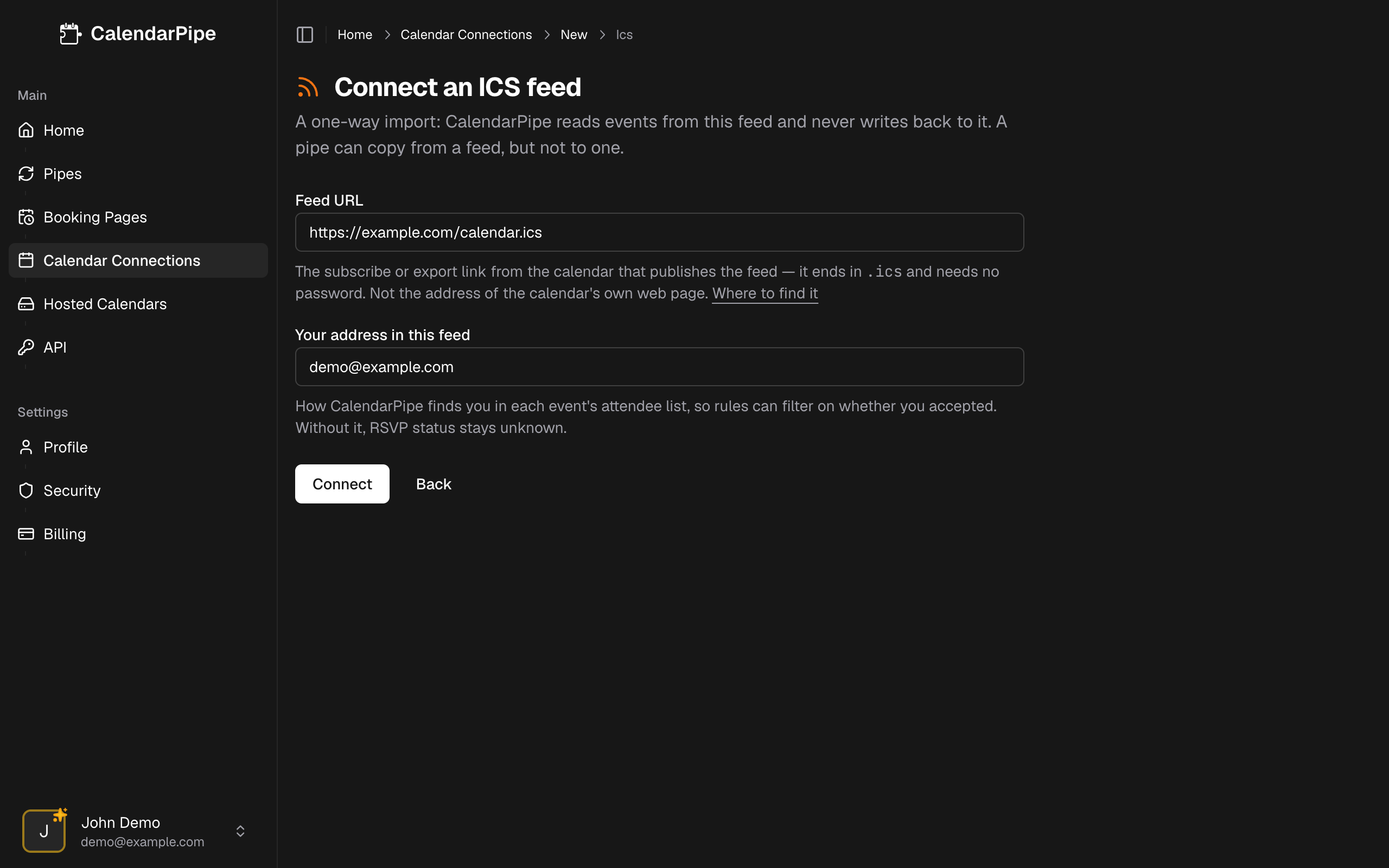
- Navigate to Calendar Connections in the CalendarPipe sidebar
- Start a new connection
- Select ICS feed from the list of providers
- Paste the ICS feed URL
- Enter your address in this feed — the one you appear under in its invitations. CalendarPipe uses it to read your RSVP status on each event
- Click Connect
3. Confirm the connection
CalendarPipe fetches the feed as part of Connect and rejects unreachable or non-ICS URLs before saving. On success, it shows the calendar name and event count.
If the URL cannot be reached or does not look like an ICS calendar, you'll see an error and the connection will not be added.
Find your feed URL
A feed URL is not the address in your browser's address bar while you are looking at the calendar. That address serves a web page; CalendarPipe needs the separate link that serves the calendar itself, and it usually ends in .ics.
Look for a Subscribe, Export, Publish, or iCal option in the calendar that owns the events:
| Calendar | Where to look |
|---|---|
| Google Calendar | Settings → the calendar under Settings for my calendars → Integrate calendar → iCal format link |
| Outlook / M365 | Calendar settings → Shared calendars → Publish a calendar → the ICS link |
| Apple / iCloud | Share the calendar → make it a Public Calendar → copy the webcal:// link |
| Everything else | Anywhere the publisher offers a subscribe link — course timetables, sports fixtures, Meetup, and so on |
If the calendar only lets you download a .ics file rather than giving you a link, there is no feed to subscribe to. Publish it first, or connect that calendar through its own connector instead.
Feeds must be reachable without a password. A link that only works while you are signed in will fail on connect.
Update a feed's link
Use Update link on the feed's card on Calendar Connections to replace its URL, for example after resetting a shared link. CalendarPipe checks the new link the same way Connect does before saving it. Pipes reading the feed keep their settings and pick up the new link on their next sync.
When a feed stops being published
If the publisher withdraws a feed, for example because the calendar was unpublished or its link was reset in Outlook, CalendarPipe stops checking it. The feed's card says Feed no longer published, and its pipes show Feed unavailable on the dashboard.
To resume syncing, publish the calendar again, copy its current link, and paste it into Update link. The pipes then start again on their own; there is nothing to recreate or re-enable. A feed that is only briefly unreachable is not affected: those checks are retried as usual.
Limitations
ICS feed connections have some limitations compared to OAuth-based connectors:
| Limitation | Details |
|---|---|
| Read-only | CalendarPipe can only read events from the feed, not write to it |
| One-way sync | Events flow from the ICS feed to CalendarPipe only |
| Recurring events | Synced as individual occurrences out to the sync window |
| No real-time updates | Events are fetched at each sync interval (every 5 minutes on Pro), and quiet feeds are checked less often -- see below |
Quiet feeds are checked less often
Google, Microsoft, and Apple can each tell CalendarPipe that nothing has changed without sending any events. Many ICS publishers cannot -- either they don't answer the standard "has this changed?" check, or they regenerate the feed on every request so it looks different each time even when your events are identical. For those feeds, the whole calendar has to be downloaded just to discover that nothing happened.
So CalendarPipe backs off: once a feed has served the same events several checks in a row, it is checked less frequently, up to a maximum of 30 minutes between checks. The moment its events change, the feed returns to your plan's normal sync interval.
In practice this only affects feeds that are genuinely idle. A feed you actively edit stays on your normal interval, and a publisher that does answer the "has this changed?" check is never backed off at all.
If you need the feed checked right now, forcing a re-sync on the pipe clears the back-off as well as the sync state, so the next run downloads the feed again.
Delivery Mode
ICS feeds work with both delivery modes:
- Direct -- Events are written directly into the target calendar (Google, Microsoft, Apple, or a hosted calendar).
- Invitation (Pro) -- Events are sent as email invitations to a target email address.
See Delivery Modes for guidance on choosing between the two.