Booking Pages
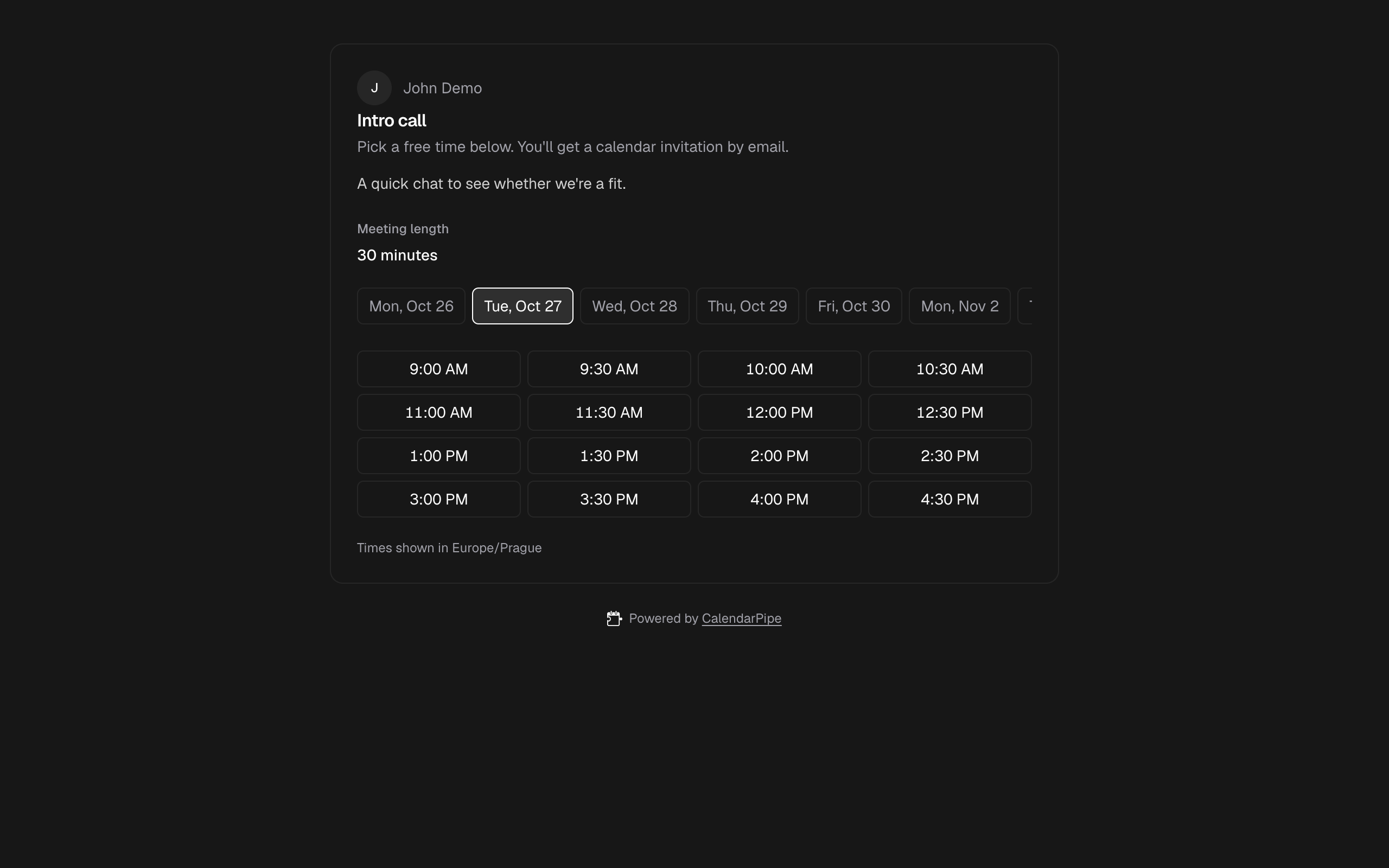
A booking page gives you a link to share. Visitors who open it see your free times, pick one, and book it — the event lands on your calendar, and they get a real calendar invitation by email. No account, no app, nothing to install on their side.
What sets CalendarPipe's booking pages apart is where availability comes from: the same calendars and rules that drive your pipes. You choose which calendars block time, and a rule per calendar decides which events count.
How a booking works
- You share the page's link. The URL is unguessable — only people you give it to can find it, and it isn't indexed by search engines.
- The visitor sees free slots in their own timezone. Busy events are never shown — only the open times between them.
- They pick a slot, choose a meeting length if you offer several, and enter their name, email, and an optional note.
- The event is written to your target calendar, and the booker receives a standard calendar invitation by email. Accepting it puts the event on their calendar; their reply is recorded on the booking.
- Both of you get a cancel link, in the email and in the event's description; the booker also gets a reschedule link. Cancelling frees the slot and removes the event. Rescheduling moves the booking in place — your calendar event updates and you get an email with the new time.
Creating a page
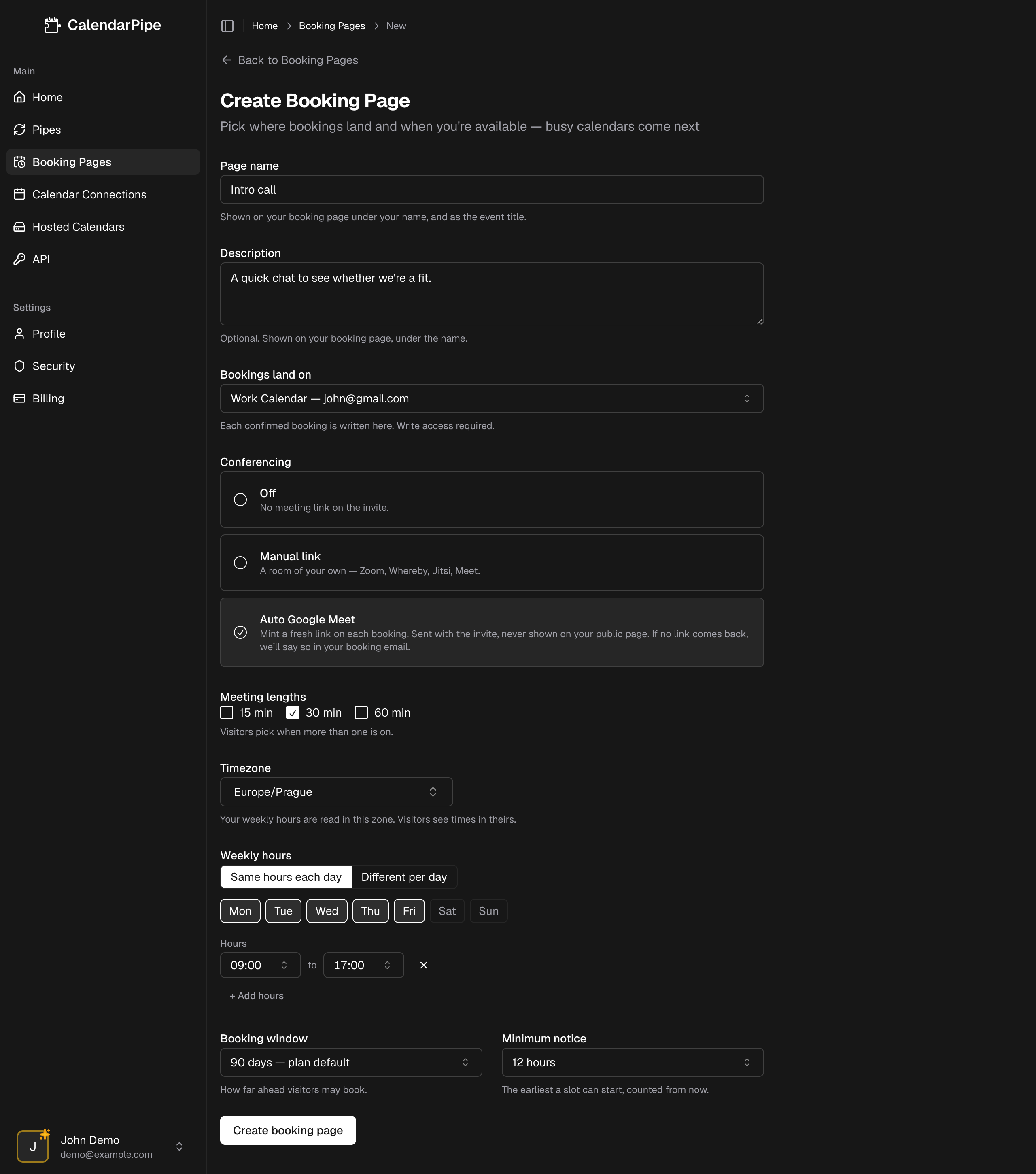
Go to Booking Pages in the sidebar and click Create Booking Page. A page combines:
| Setting | What it does |
|---|---|
| Page name | Visitors see it, and it becomes the event title alongside the booker's name. |
| Bookings land on | The calendar each confirmed booking is written to — any writable connected calendar, or a hosted calendar. |
| Conferencing | Off, a manual meeting link, or Auto Google Meet / Teams when the target calendar supports it. Sent with the invite, never shown on the public page. Some personal Microsoft accounts can't create Teams links yet; when a booking gets no link, your booking email says so. |
| Meeting lengths | 15, 30, and/or 60 minutes. Visitors pick when more than one is on. |
| Weekly hours | The hours you offer — the same every day, or per day. Defined in your timezone; visitors always see their own. |
| Booking window | How far ahead visitors may book. |
| Minimum notice | The earliest a slot can start, counted from the moment the visitor looks. Default 12 hours. |
The page can be paused at any time — the link stops offering times until you switch it back on. Existing bookings stand.
Busy calendars and rules
Availability starts from your weekly hours; busy calendars carve it down. Add any connected calendar — Google, Microsoft, Apple, a hosted calendar, or a read-only ICS feed — and its events make those times unavailable.
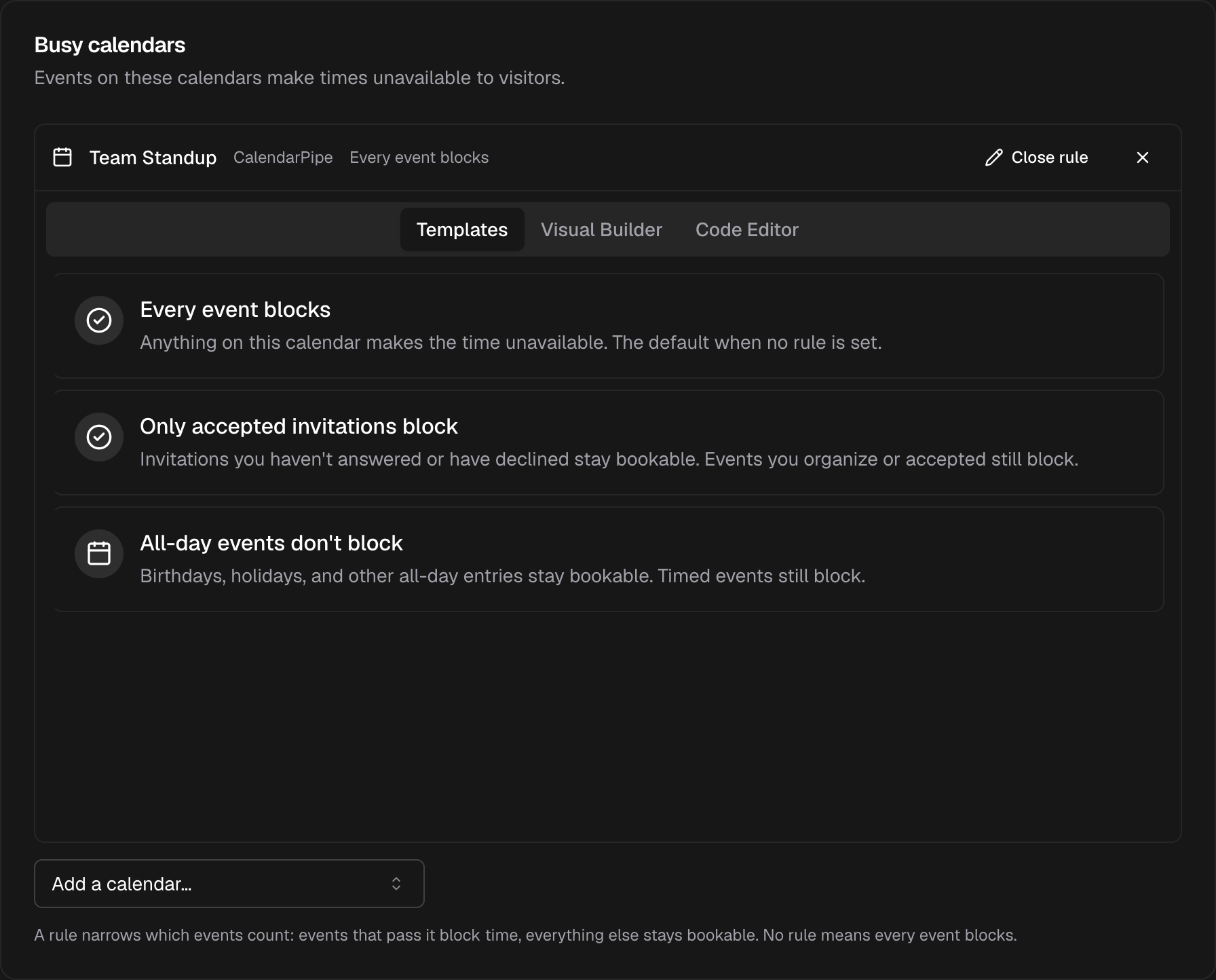
By default, every event on a busy calendar blocks its slot. Add a rule to narrow that. Rules use the same three surfaces as pipes — templates, the visual builder, and the code editor — and the logic reads the same way: events that pass the rule block time, everything else stays bookable. For example:
- Only accepted invitations block — pending and declined invitations stay bookable.
- All-day events don't block — birthdays and holidays don't swallow the whole day.
- A custom rule — block only events with attendees, only events matching a keyword, anything a rule can express.
Rules can also add buffer time before or after events, so bookings aren't back-to-back with your meetings.
You can test a rule against your real events before saving it, exactly as with pipes.
If one of your busy calendars can't be read — a provider outage, an expired connection — the page shows no availability rather than guessing. A booking page will never offer time it can't verify is free.
When a page goes offline
Some connection problems last until you fix them: a Google or Microsoft account that needs reconnecting, or an ICS feed its publisher stopped publishing. If such a calendar is one of a page's busy calendars, the page is Offline: visitors see no times. The page list and the page editor mark it Offline, name the calendar, and offer the fix: Reconnect for an account, Update link for a feed. Once it's fixed, the page offers times again on its own. You don't need to switch it back on.
If the account that needs reconnecting is only where bookings land, the page stays online but shows Bookings aren't reaching your calendar. People can still book, but new bookings can't be added to that calendar until you reconnect it.
The account or feed's card on Calendar Connections also lists the booking pages it affects.
What's blocking
If your page looks emptier than expected, the What's blocking panel in the page editor lists the days in your booking window with one free slot or none, and what took the time: each event with its calendar, and your confirmed bookings. Only events your rules let through appear, and only those that overlap your weekly hours. If a busy calendar can't be read, the panel names it.
The panel uses your first meeting length and is visible only to you — visitors still see free times, never event titles.
Double-booking
Two visitors can't take the same slot. Availability is re-checked at the moment of booking, and if two people race for the last slot, exactly one booking succeeds — the other visitor is asked to pick another time.
Plans
| Plan | Booking pages | Busy calendars per page | Booking window |
|---|---|---|---|
| Free | 1 | 1 | 14 days ahead |
| Pro | Unlimited | Unlimited | 30, 60, 90, or 180 days |
What booking pages don't do (yet)
- Custom intake questions — bookers provide name, email, and a free-form note.
- Embeds — the page is hosted on calendarpipe.com; there's no iframe or widget.
- Team or round-robin pages — a page books one person's time.