Quick Start
Set up your first sync — two calendars, events flowing through a pipe — in under five minutes.
You will need two calendars to sync between and access to the accounts that own them. They can share one account (for example, your personal and family calendars in one Google account) or come from different ones (a Google and a Microsoft calendar, or two Google accounts).
CalendarPipe syncs one-way: source → target. To sync both directions, create two pipes.
Step 1: Sign up
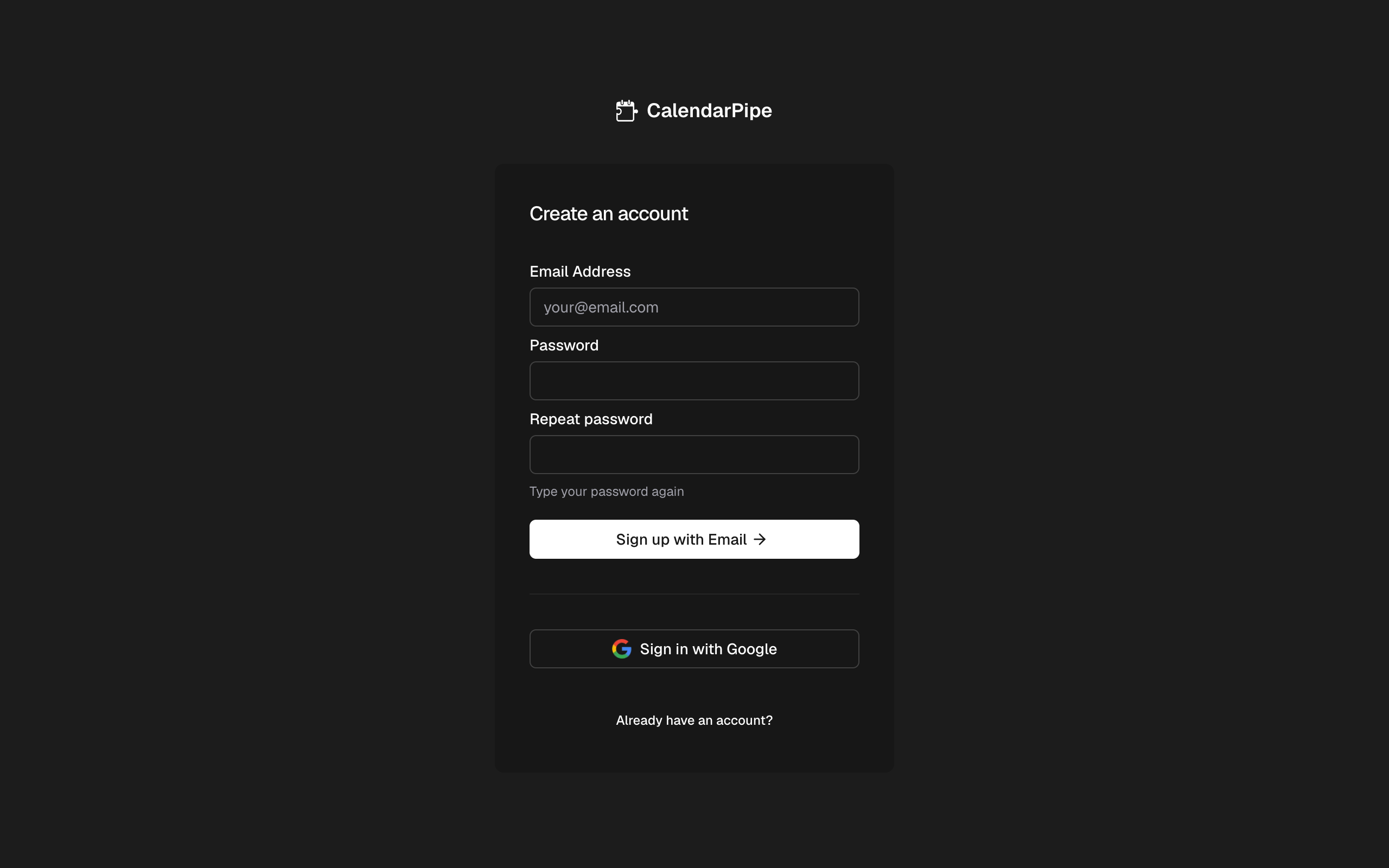
Go to calendarpipe.com and create your account. You can sign up with email and password or use Google sign-in.
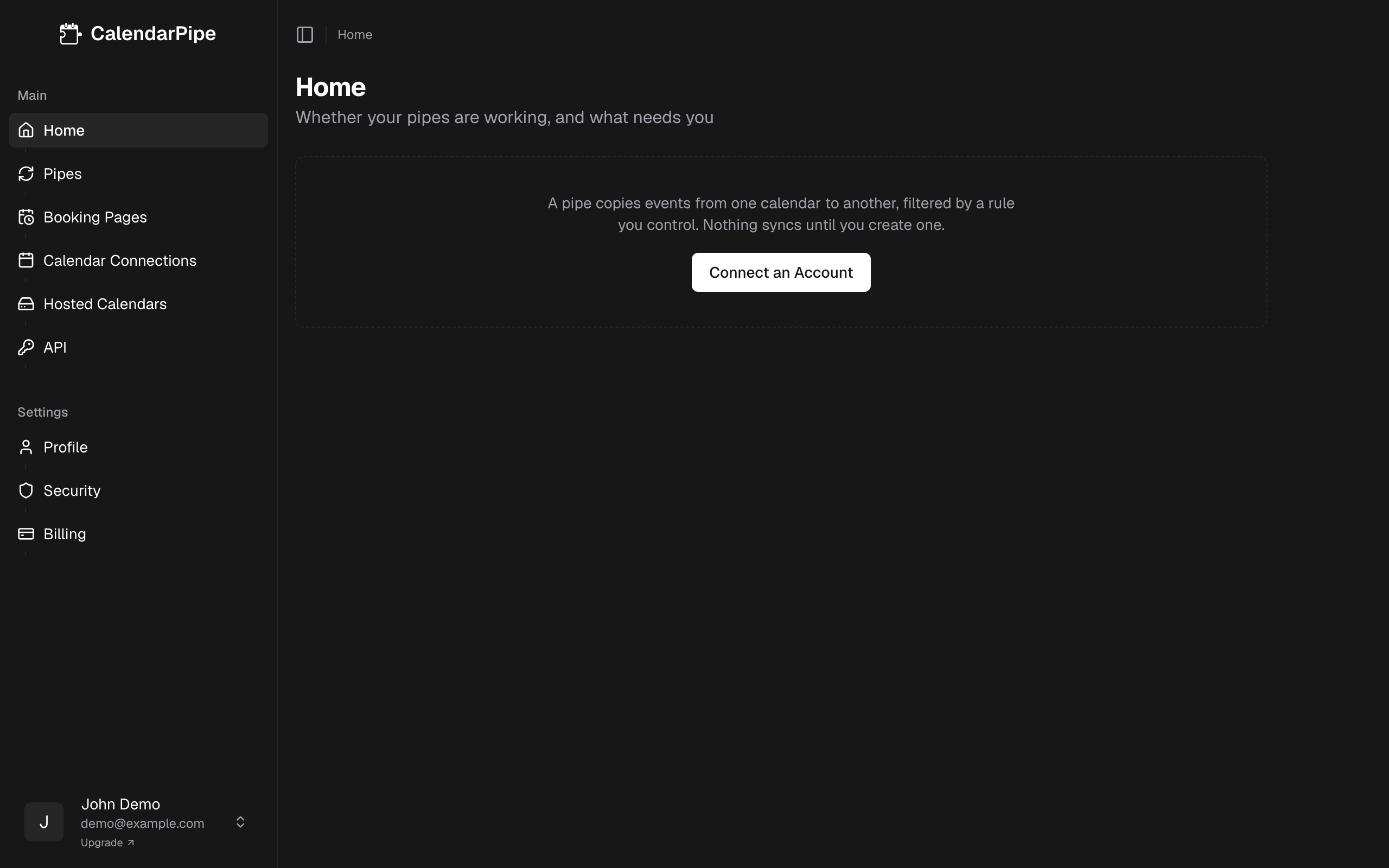
After signing up, you will land on the CalendarPipe dashboard.
Step 2: Connect a calendar account
Navigate to Calendar Connections in the left sidebar. With nothing connected yet, the page offers a single way forward.
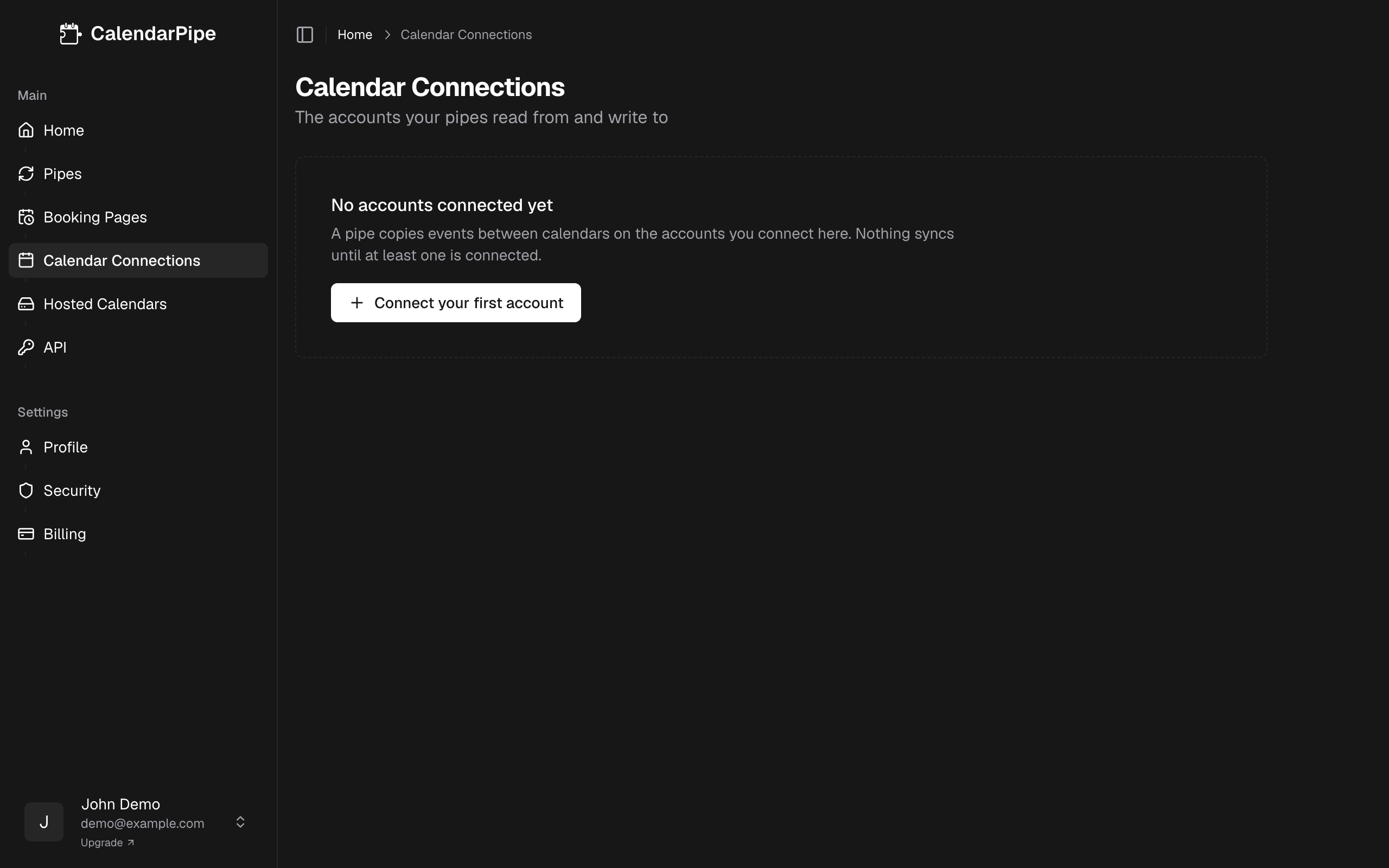
Click Connect your first account and choose your provider:
- Google Calendar -- Sign in with Google and grant calendar access (detailed guide)
- Microsoft Outlook -- Sign in with Microsoft and grant calendar access (detailed guide)
- Apple Calendar -- Enter your Apple ID and an app-specific password (detailed guide)
- ICS feed -- Paste a feed URL. Read-only, so a feed can be a source but never a target (detailed guide)
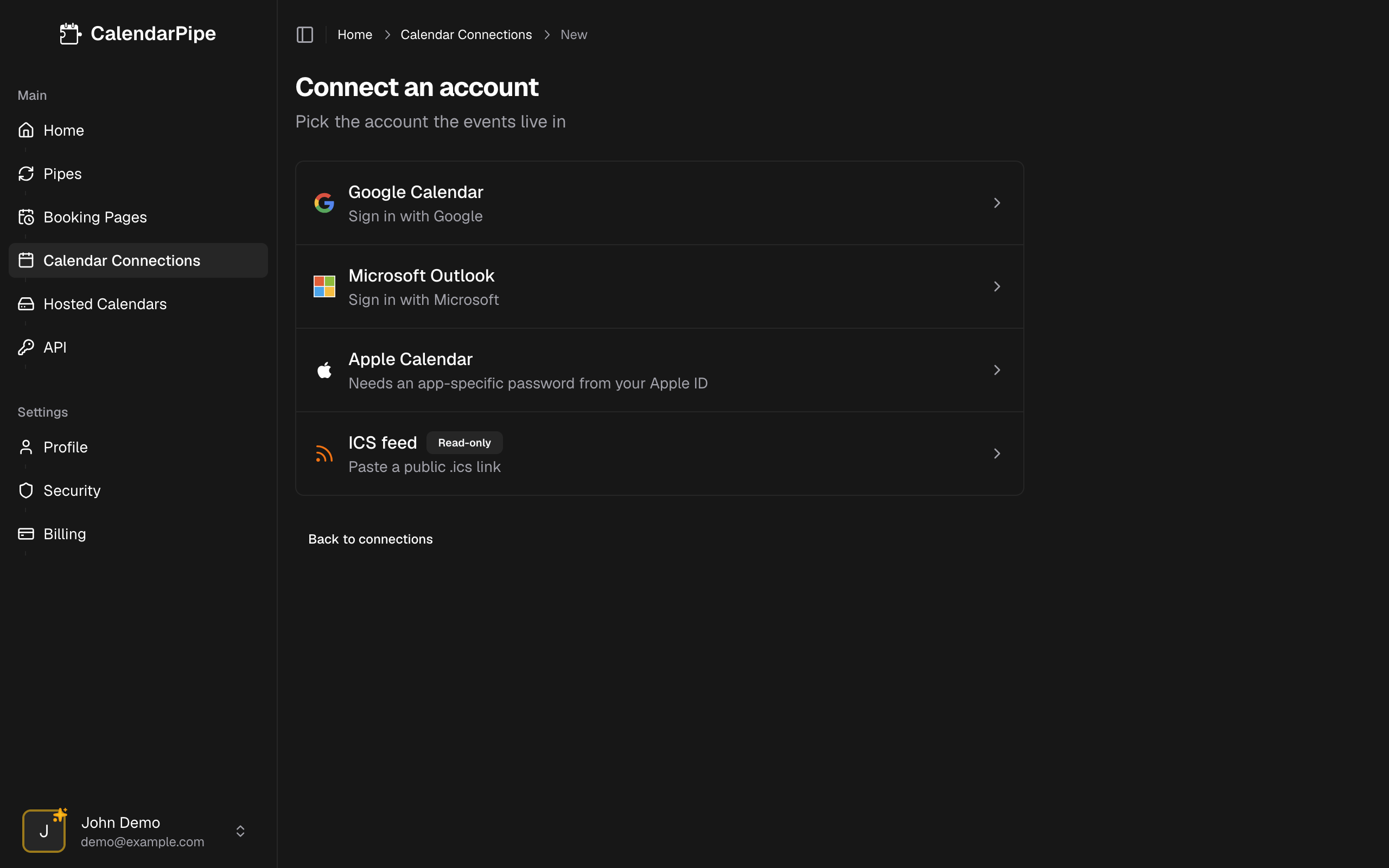
Follow the prompts for your chosen provider. Once connected, the account appears in the list and every calendar on it is available to your pipes.
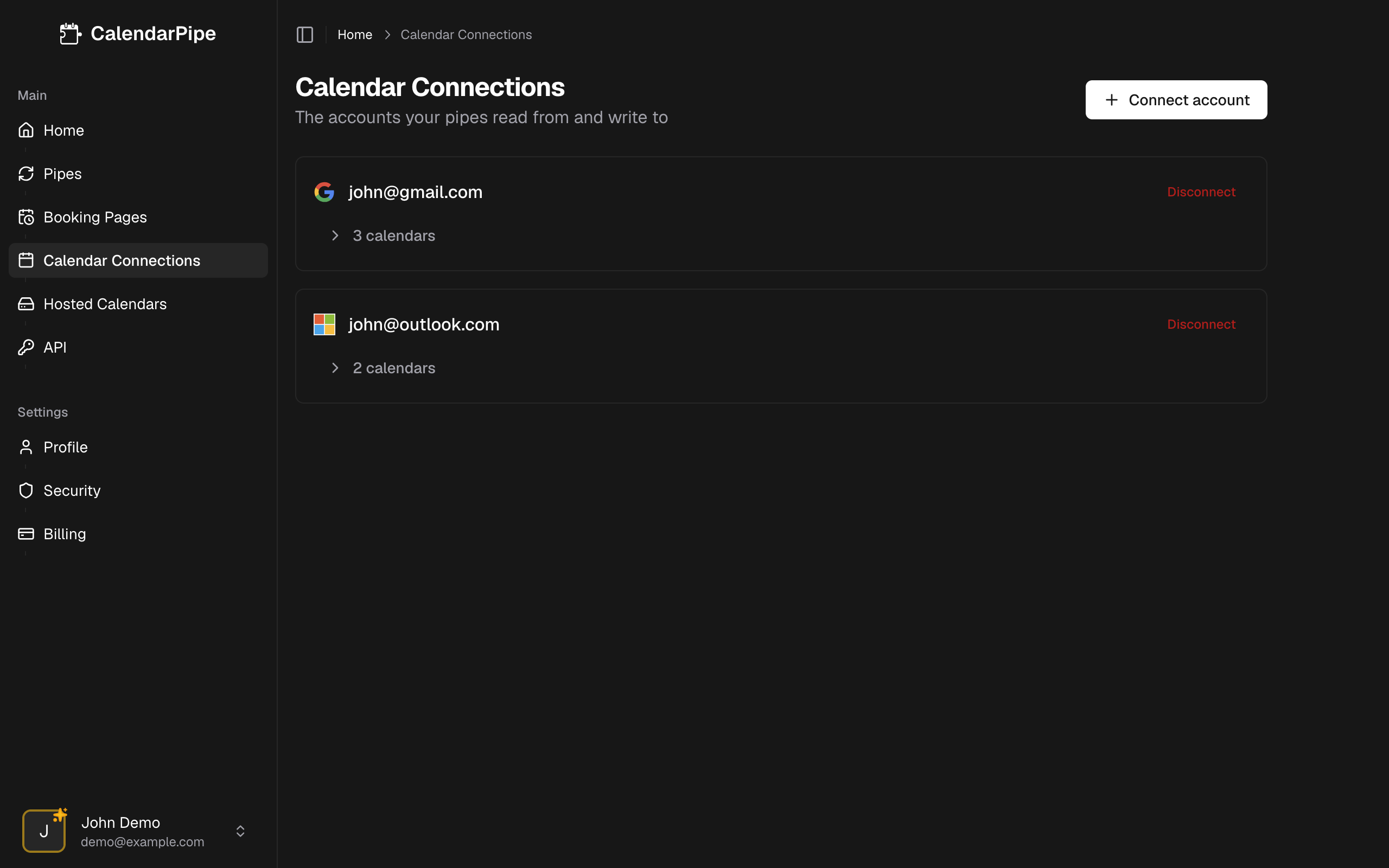
A pipe needs two calendars -- one as the source and one as the target. If the account you just connected already has both, go straight to Step 3. Otherwise, repeat this step to connect another account. If you open Create Pipe with only one calendar, CalendarPipe asks for a second one instead of showing the form.
Step 3: Create a pipe
Navigate to Pipes in the left sidebar and click Create Pipe.
- Name your pipe -- Choose a descriptive name like "Work to Personal (filtered)"
- Select source calendar -- The calendar events will be read from
- Select target calendar -- The calendar events will be written to
- Choose delivery mode -- Select Direct (default) to write events directly to the target calendar
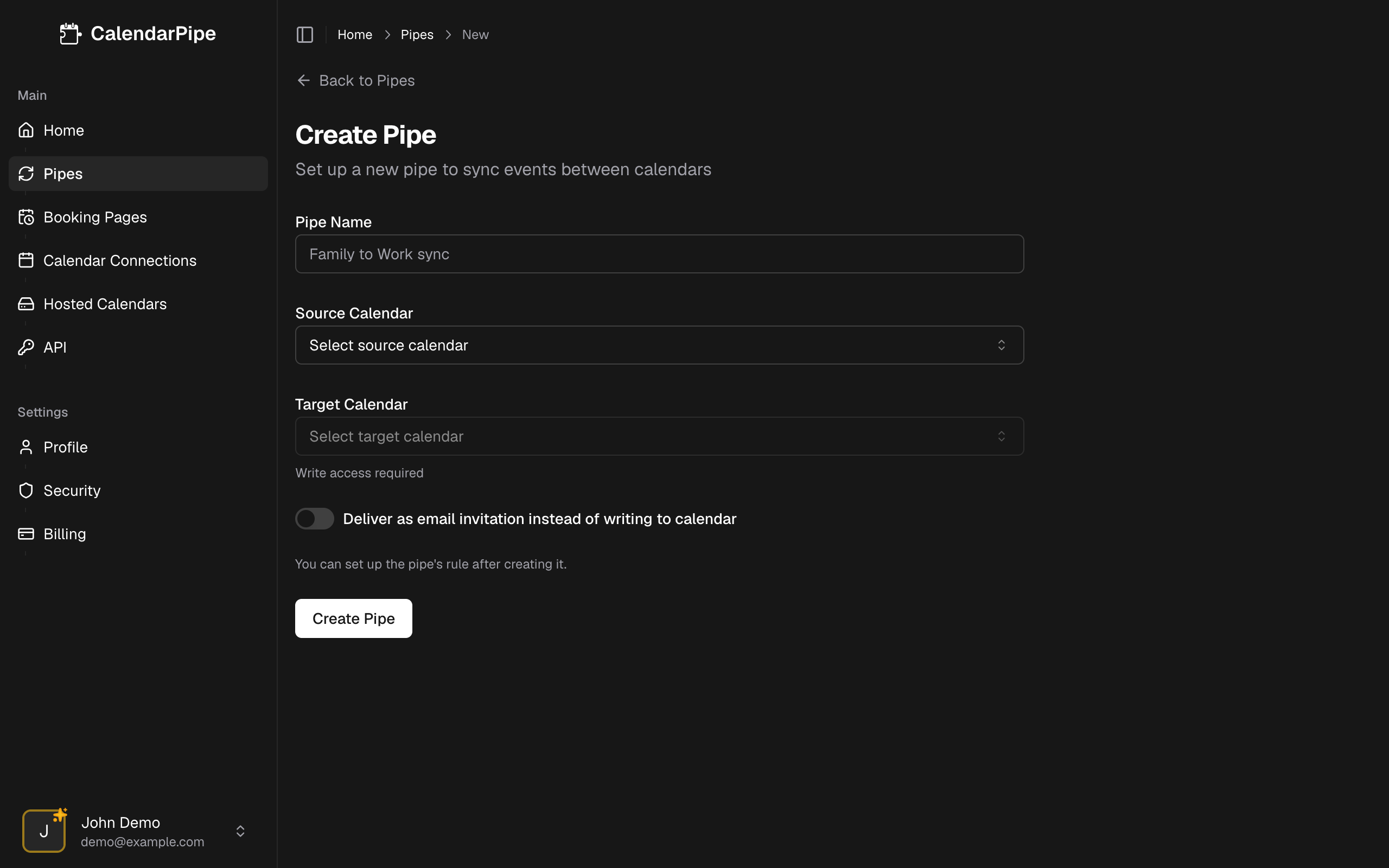
For more details on delivery modes and options, see Creating Pipes.
Step 4: Choose a rule
Every pipe needs a rule that decides which events to sync and how. For your first pipe, choose one of the built-in templates:
- Copy All Events -- Sync everything without modification (good for getting started)
- Busy Events as "Personal Commitment" -- Only sync busy events with a redacted title
- Weekday Events Only -- Only sync Monday through Friday events
You can always change or customize your rule later. To learn more, see the Rules overview.
Step 5: Verify your sync
After creating your pipe, CalendarPipe will start syncing events automatically. The first sync happens within a few minutes.
To verify everything is working:
- Open your target calendar in its native app (Google Calendar, Outlook, etc.)
- Look for events from your source calendar appearing on the target
- Check the pipe in CalendarPipe for the last sync timestamp and event count
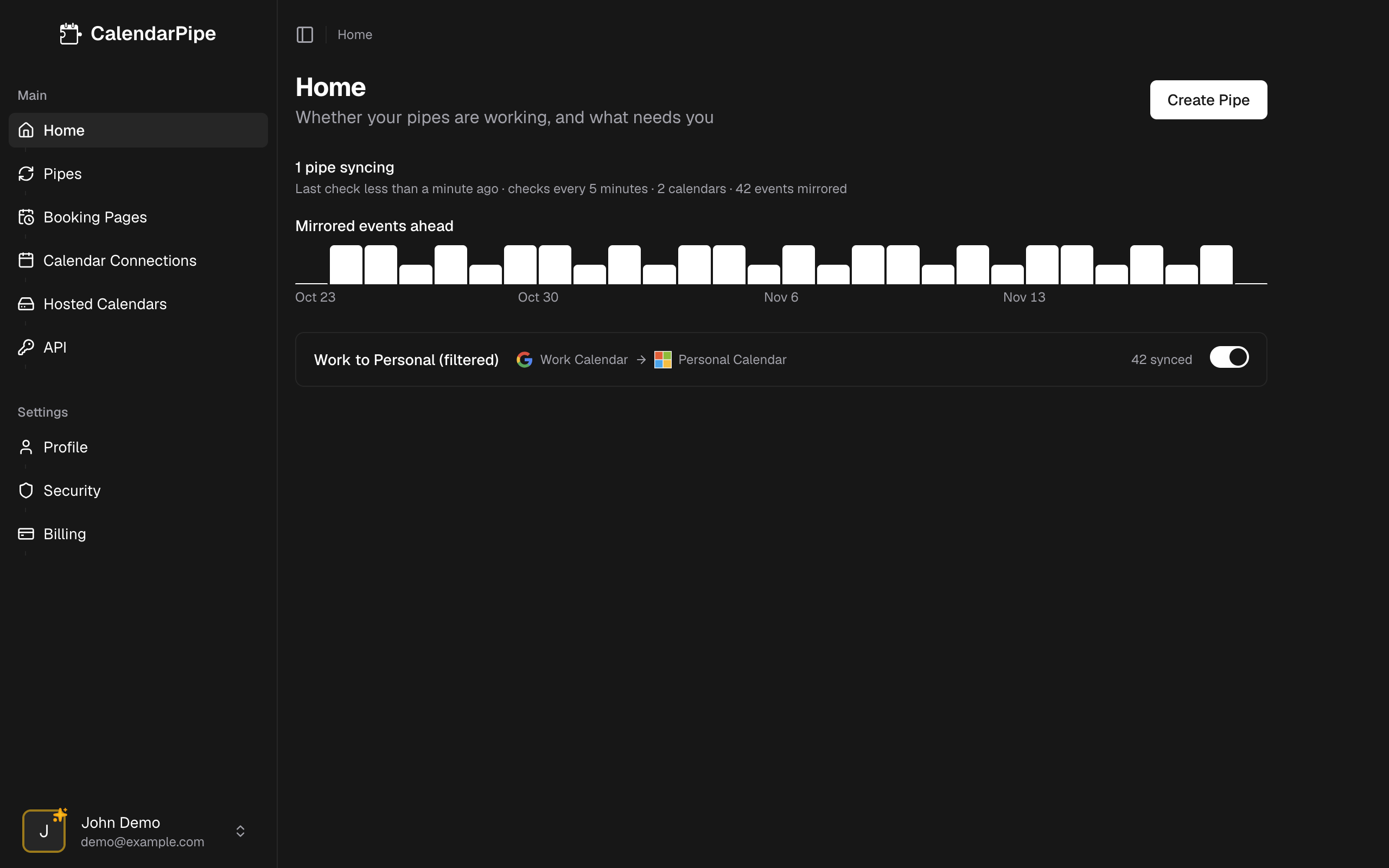
- Free plan: Events sync every 15 minutes
- Pro plan: Events sync every 5 minutes
Changes made in your source calendar will appear in the target calendar at the next sync interval.
What happens next
Your pipe is now active. CalendarPipe will automatically check your source calendar for new, updated, and deleted events at each sync interval and apply your rule to each one.
Here are some things you can do next:
- Add more connections -- Connect additional calendars from any supported provider
- Create more pipes -- Set up pipes between different calendar pairs
- Customize rules -- Write custom logic to filter and transform events exactly how you want
- Upgrade to Pro -- Get faster sync intervals, ICS feed support, AI-generated rules, and more