Connect Apple Calendar
Apple Calendar connects via CalDAV using an app-specific password — a separate password generated from your Apple ID that keeps your main credentials private.
You will need an Apple ID with iCloud Calendar enabled and two-factor authentication active (required to generate app-specific passwords). Manage your Apple ID at appleid.apple.com.
Step 1: Generate an app-specific password
Create the password from your Apple ID settings before connecting.
Use an app-specific password, not your regular Apple ID password. CalendarPipe will not accept the latter.
- Go to appleid.apple.com and sign in.
- Navigate to Sign-In and Security > App-Specific Passwords.
- Click +, label it
CalendarPipe, and click Create. - Copy the generated password — Apple will not show it again.
The password looks like abcd-efgh-ijkl-mnop. Keep it safe until you finish the connection.
Step 2: Connect in CalendarPipe
- Navigate to Calendar Connections in the CalendarPipe sidebar
- Start a new connection
- Select Apple Calendar from the list of providers

- Enter your Apple ID email address
- Paste the app-specific password you generated in Step 1
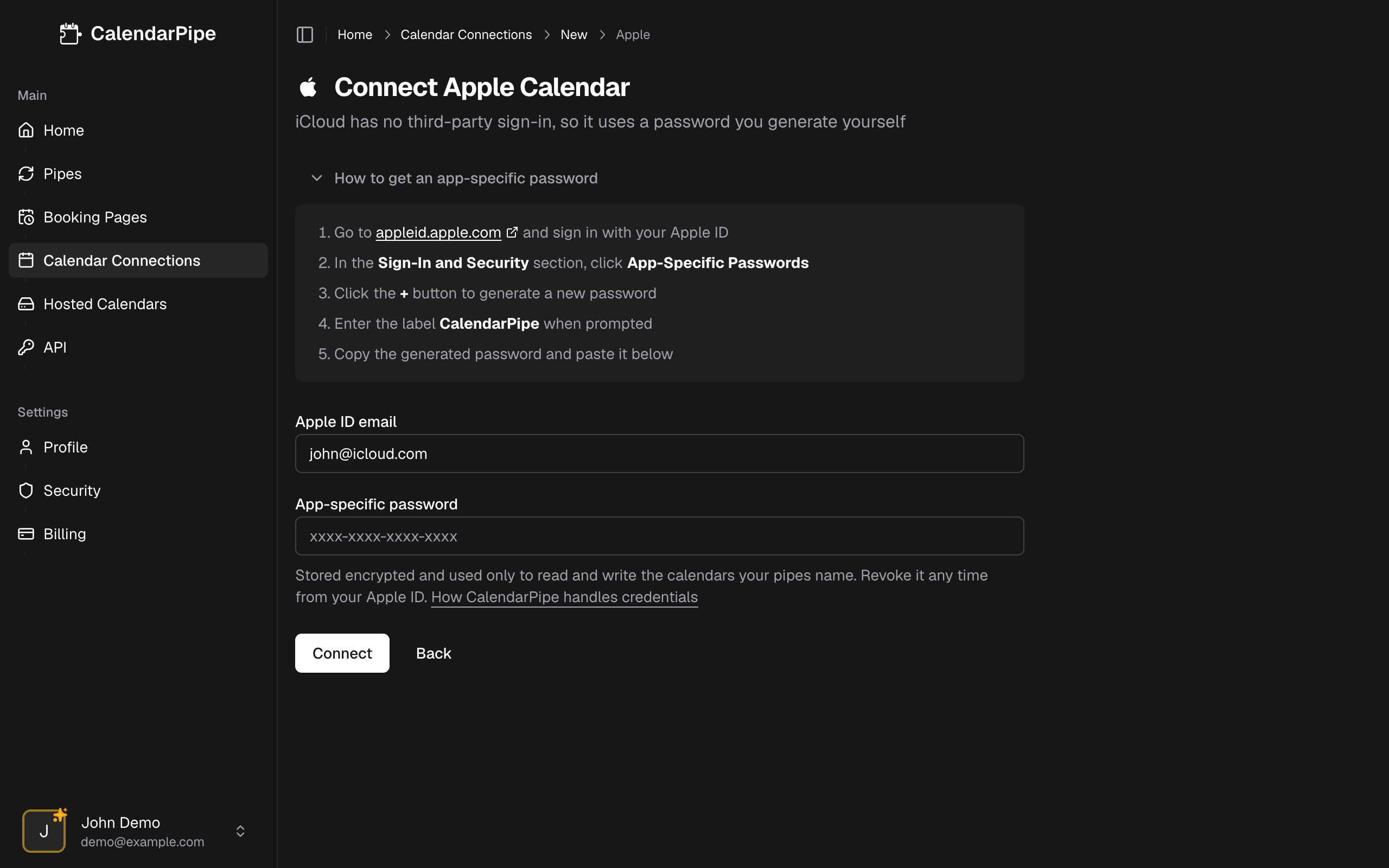
- Click Connect
- You are returned to Calendar Connections with the account listed. Expand it to see the iCloud calendars now available to your pipes.
Limitations
| Limitation | Details |
|---|---|
| Recurring events | Synced as individual occurrences out to the sync window, like any source |
Revoke access
To disconnect CalendarPipe from your Apple Calendar, revoke the app-specific password:
- Go to appleid.apple.com > Sign-In and Security > App-Specific Passwords.
- Click x next to the
CalendarPipepassword and confirm.
Revocation takes effect immediately — CalendarPipe loses access to your calendars on the next sync attempt.
Troubleshooting
- "Authentication failed" error -- Make sure you are using an app-specific password, not your regular Apple ID password. If the password was recently generated, wait a minute and try again.
- No calendars found -- Verify that iCloud Calendar is enabled in your Apple ID settings (System Settings > Apple ID > iCloud > Show More Apps > iCloud Calendar).
- 2FA not enabled -- App-specific passwords require two-factor authentication. Enable 2FA in your Apple ID settings before generating an app-specific password.
- Password expired -- App-specific passwords remain valid unless manually revoked. If your connection stops working, generate a new app-specific password and reconnect.