Creating Pipes
A pipe is the core building block of CalendarPipe. It connects a source calendar to a target calendar through a rule that filters and transforms events as they flow between the two.
How Pipes Work
When a pipe is active, CalendarPipe periodically reads events from the source calendar and passes each one through the pipe's rule. Events the rule passes are synced to the target calendar. Events it blocks are skipped.
Source Calendar --> Rule --> Target Calendar
             (filter/transform)
Events created by a pipe don't travel further
When a pipe copies an event into a target calendar, that copy stays put. No other pipe will pick it up and copy it onward.
This is what makes two-way setups safe. If you sync Work → Personal and Personal → Work, neither pipe treats the other's copies as new events, so the two calendars settle instead of echoing back and forth and multiplying copies.
Invitations CalendarPipe sends aren't copied back either: if you subscribe to the recipient calendar's ICS feed and sync it into the calendar the invitations came from, your own invitations are skipped.
It also means pipes don't chain. If you sync A → B and B → C, events from A reach B but do not continue on to C. To get them to C as well, add an A → C pipe.
Creating a Pipe
1. Go to Pipes
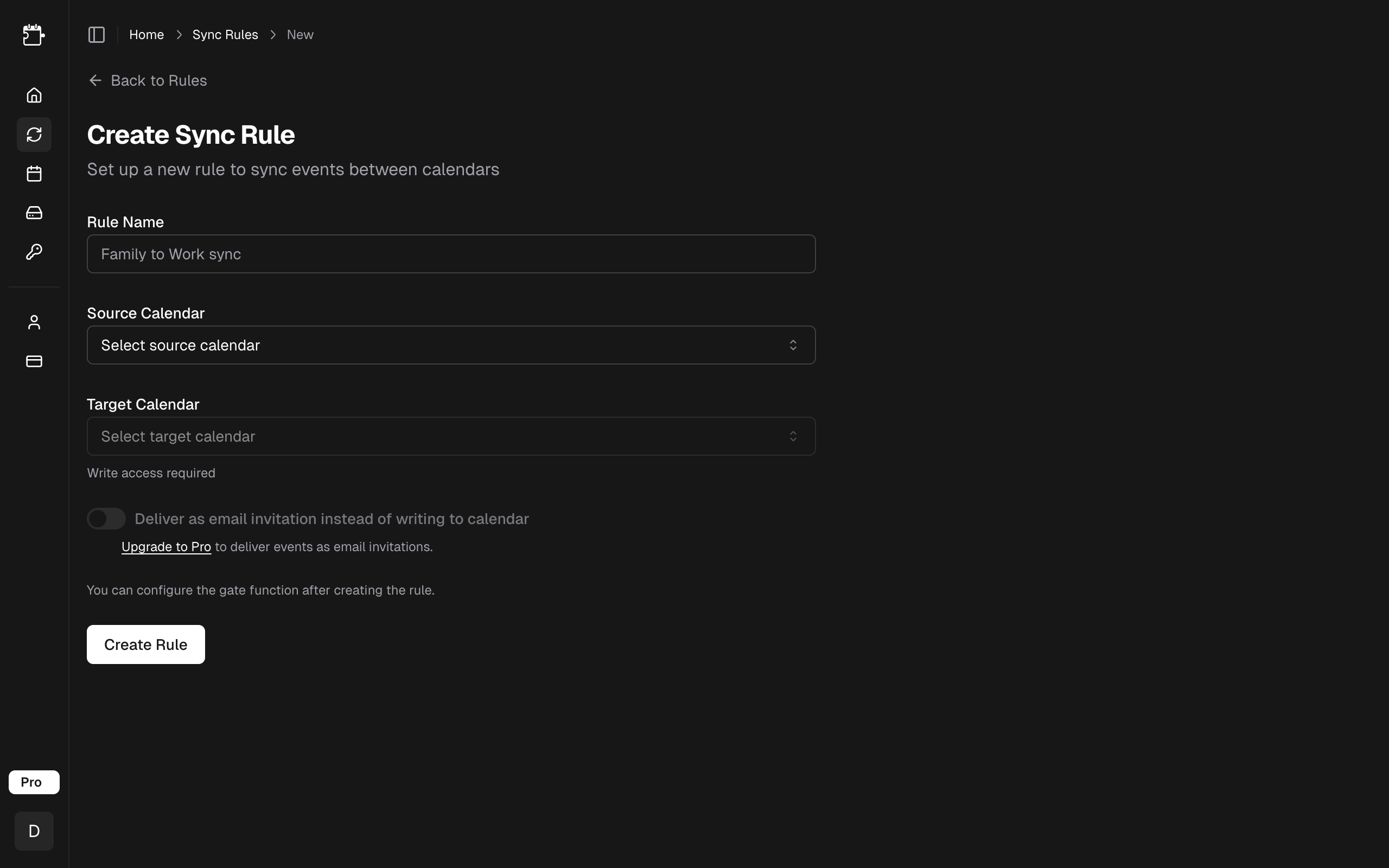
Go to Pipes in the CalendarPipe sidebar and click Create Pipe.
2. Select source and target calendars
Choose which calendar to read events from (source) and which calendar to write events to (target). Both can come from the same connected account -- for example, two calendars in one Google account.
If you only have one calendar, CalendarPipe asks for a second one instead of showing the form: add another calendar to an account you've connected, or connect another account. On Pro, invitation delivery only needs a source calendar, so the form opens with a single calendar.
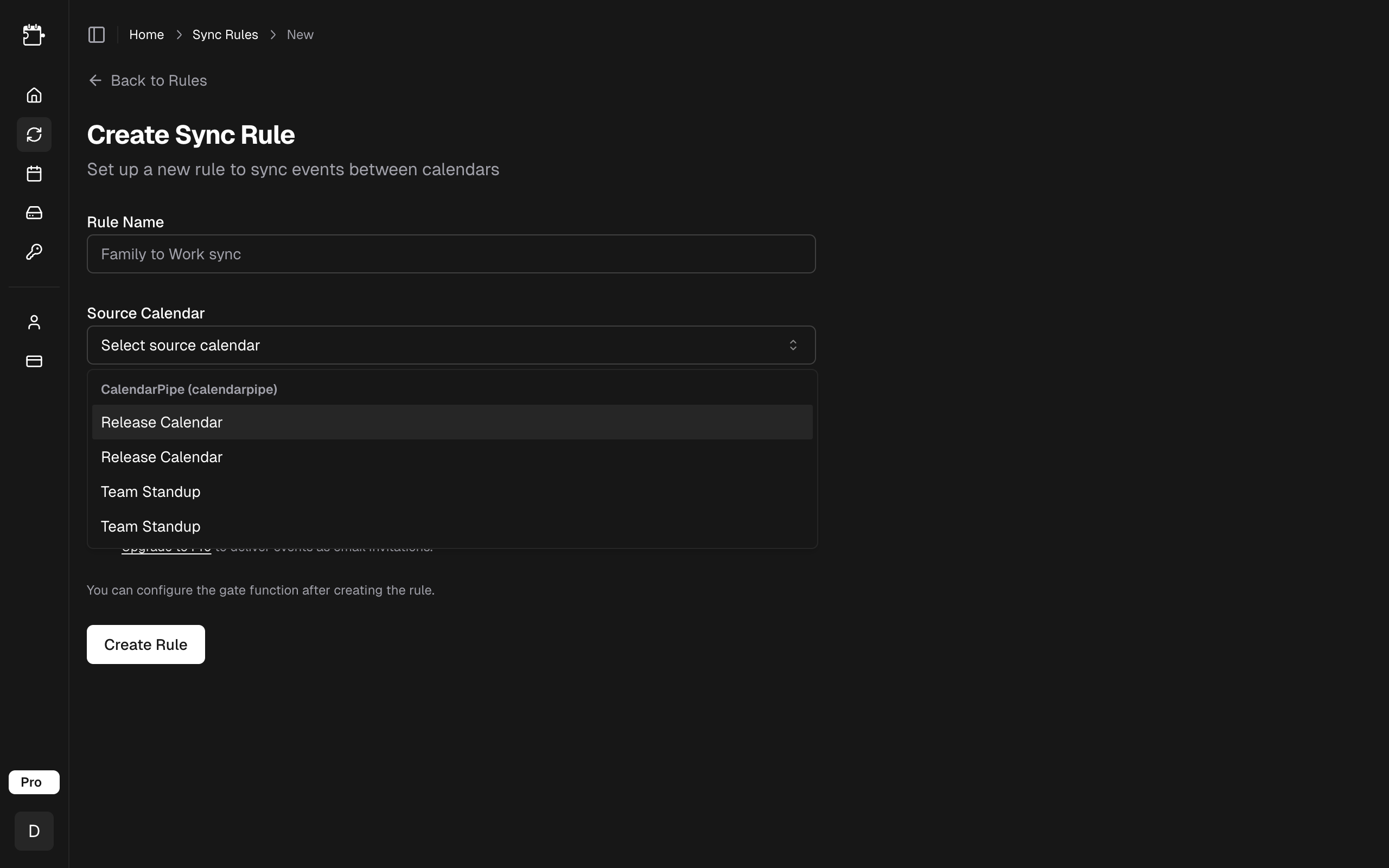
Choose a descriptive Pipe Name that makes the pipe's purpose clear at a glance:
- "Work to Personal (filtered)"
- "Team Calendar to My Calendar (free)"
- "Sports Schedule to Personal"
3. Choose a delivery mode
CalendarPipe supports two delivery modes that control how synced events reach the target calendar:
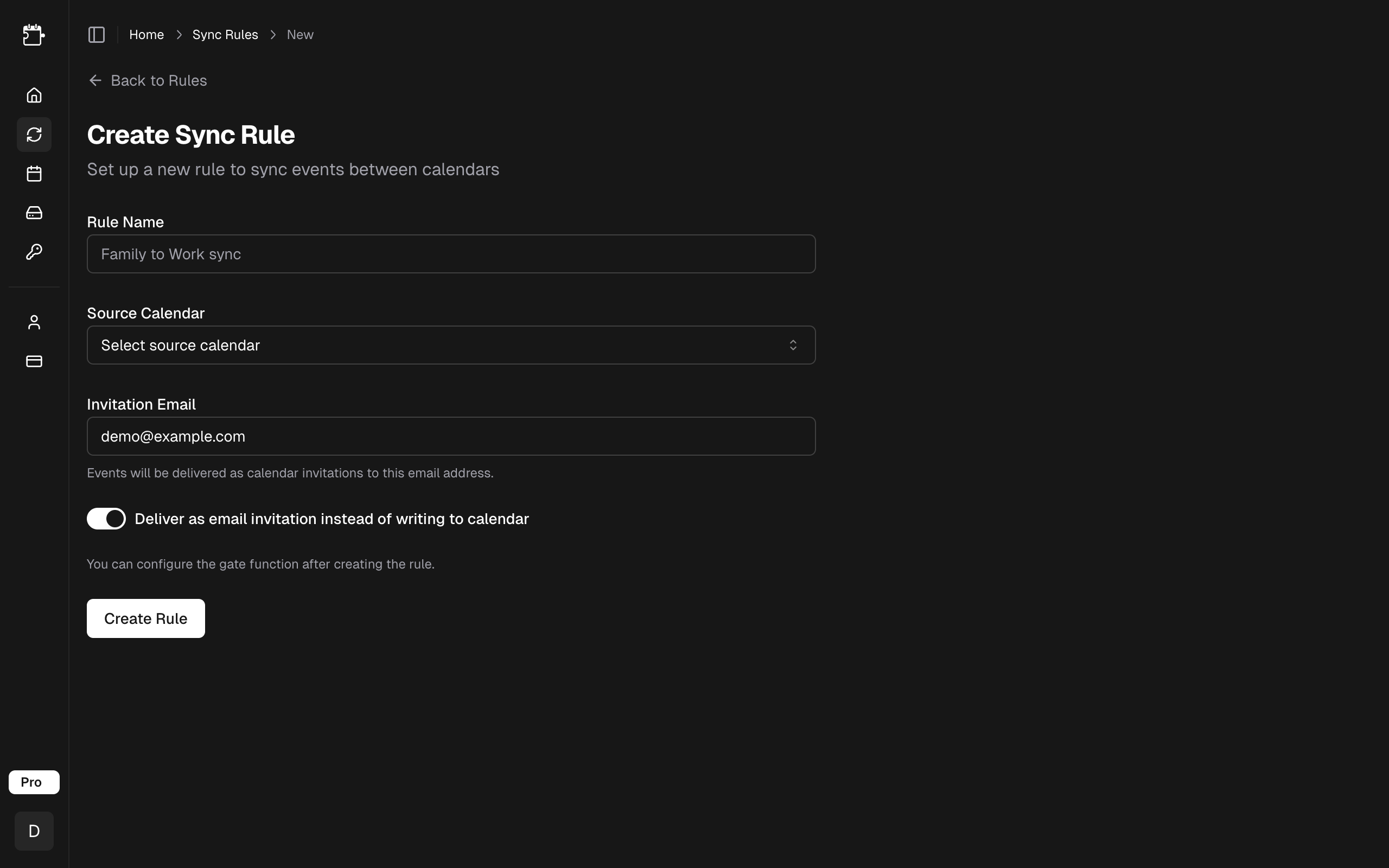
- Direct (all plans) -- CalendarPipe writes events directly into the target calendar via the provider's API.
- Invitation (Pro) -- CalendarPipe sends events as standard email invitations (
.ics) to a chosen address. Useful when the target calendar can't be connected via OAuth (e.g. a locked-down work calendar) or when you're syncing into someone else's inbox.
Both modes work with any source -- including ICS feeds, which can be synced into a connected Google/Microsoft/Apple/hosted target via Direct delivery, or routed to an email address via Invitation delivery.
See Delivery Modes for a full comparison and guidance on which mode to pick.
4. Add a rule
Every pipe needs a rule. Write one with:
- Templates -- Pre-built rules for common use cases
- Visual Builder -- Build a rule with a point-and-click interface
- Code Editor -- Write the rule as a custom TypeScript gate function
- AI Generator -- Describe what you want in plain English (Pro only)
For your first pipe, start with the Copy All Events template, which syncs everything without modification. You can customize the rule later.
To learn more, see the Rules overview.
Managing Pipes
Once created, you can manage your pipes from the Pipes page:
- Enable/Disable -- Toggle a pipe on or off without deleting it
- Edit -- Change the rule, delivery mode, or pipe name
- Delete -- Permanently remove the pipe and stop syncing
Event Colour
Each pipe can give the events it writes a colour, so several pipes feeding the same calendar stay tellable apart. Click the coloured dot beside the pipe's name and pick one; "No colour" leaves events with the destination calendar's own default.
Changing the colour re-colours events the pipe has already synced, not just new ones — the change lands on the pipe's next sync. The pipe owns the colour of the copies it writes, so if you recolour one of those copies by hand in your calendar, the next sync puts it back.
Colours are supported on Google Calendar targets only, so the dot only appears on those pipes. Outlook has no per-event colour, and Apple/CalDAV and hosted calendars cannot carry one.
For a colour that depends on the event rather than the pipe, its rule can override it per event with transform.color.
Sync Intervals
CalendarPipe checks for changes at regular intervals:
| Plan | Sync Interval |
|---|---|
| Free | Every 15 minutes |
| Pro | Every 5 minutes |
When changes are detected in the source calendar (new events, updates, or deletions), CalendarPipe applies the rule and updates the target calendar accordingly.
ICS feed sources are the one exception: a feed that keeps serving the same events is checked less often until it changes. See ICS Feeds.
Sync Window
Each pipe fills in a rolling window of upcoming events:
| Plan | Sync window |
|---|---|
| Free | 14 days |
| Pro | 90 days |
This is a floor, not an average. CalendarPipe actually fetches about a week further out than the number above, and refreshes again before coverage can fall back to it — so the figure holds at every moment, not just right after a sync. Refreshes are automatic; there is nothing to trigger manually.
On Pro you can widen it in Settings, up to 180 days. The window applies to every pipe on your account — one setting, not one per pipe.
Pipes using Invitation delivery never go beyond 30 days, whatever your plan or Settings choice. Each event write in that mode is an email, so the window sets how much mail a sync sends. The cap applies on top of everything above — widening the account setting does not lift it.
What the window actually limits
Two things are not limited by it:
- Events you create or change. On Google, Outlook and Apple sources these sync on the next interval however far ahead they are — book a flight eight months out and it copies straight over.
- Events already synced. Narrowing a window never removes anything already in the target calendar; it only stops refreshing the far end.
What the window does govern:
- Recurring events, whatever the source. A weekly meeting has no natural end, so CalendarPipe materialises its occurrences out to the window and adds more as the window advances. This is the main reason the window exists.
- Events that were already on the calendar further ahead than the window when the pipe first ran. They are picked up as the window reaches them.
These sources are re-read in full on each sync rather than sending incremental changes, so the window applies to all their events. A newly added far-future event on one of them waits for the window to reach it.
Apple works this way on a pipe's first sync. After that it sends incremental changes like Google and Outlook, so later edits reach the target calendar however far ahead they sit.
Apple and ICS sources sync single events only. A repeating event is skipped rather than expanded into occurrences, so the window above never applies to it. Google and Outlook sources are unaffected.
Why a window at all?
An unbounded fetch would mean expanding every recurring series indefinitely and re-reading the entire calendar on every cycle. A bounded window keeps each sync fast and predictable, and the rolling refresh means the coverage you have never silently decays past the guaranteed figure.
Limits
| Plan | Max Pipes |
|---|---|
| Free | 1 |
| Pro | Unlimited |