Visual Builder
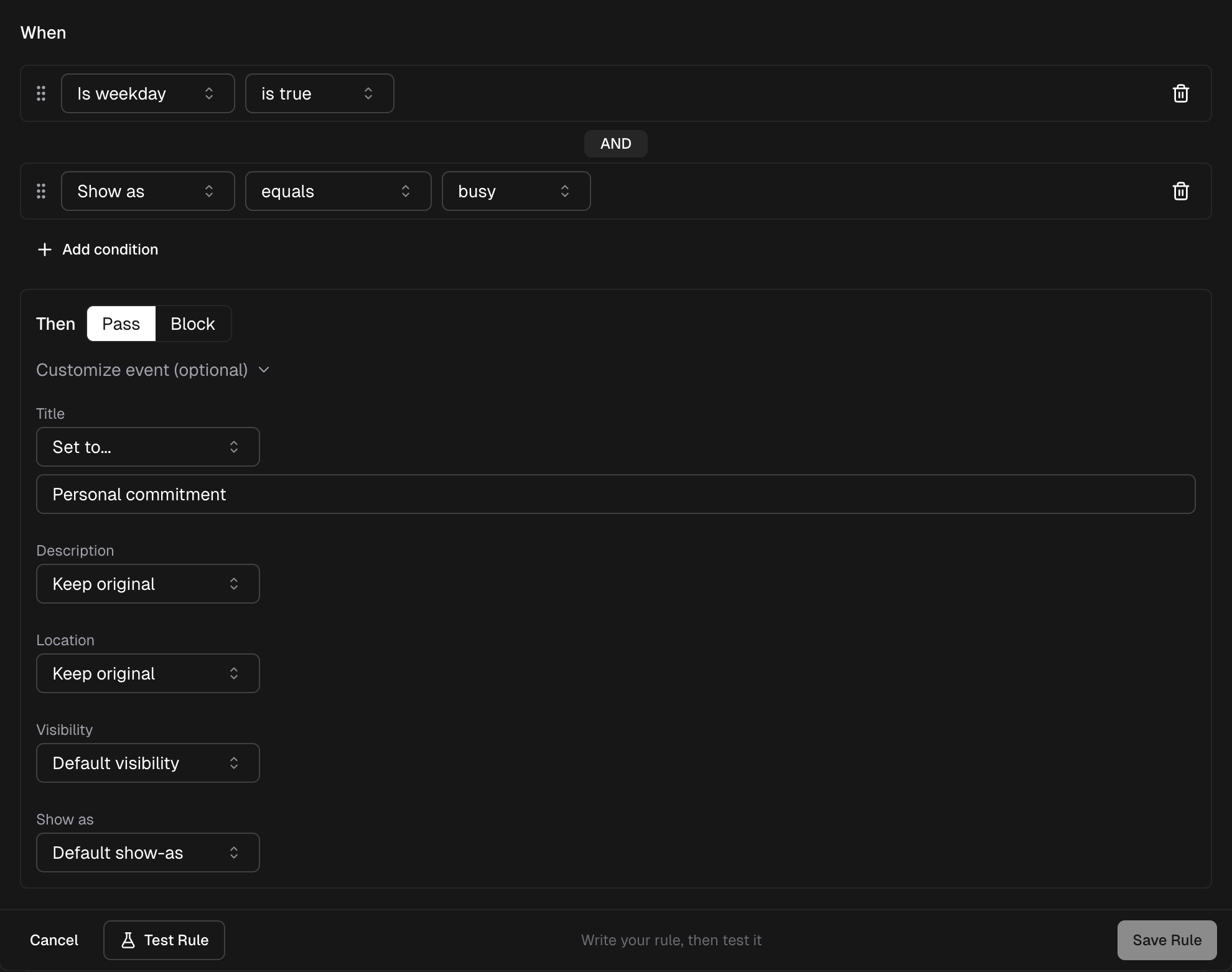
The Visual Builder lets you create gate functions by selecting conditions and actions from dropdown menus. No coding required -- just pick event properties, choose operators, set values, and define what happens when conditions match.
How It Works
The Visual Builder generates a gate function from three components:
- Conditions -- Rules that evaluate event properties (e.g., "Title contains meeting")
- Combinator -- How multiple conditions are joined: AND (all must match) or OR (any can match)
- Action -- What happens when conditions match: Pass (sync the event) or Block (skip the event), with optional transforms
When CalendarPipe syncs events, each event is checked against your conditions. If the conditions match, the action is applied. If the conditions don't match, the opposite action is applied (i.e., if the action is "Block", non-matching events are passed through).
Conditions are optional. A rule with no conditions matches every event, so the action (and any transform) applies to all of them — useful when you want to transform or block everything without an artificial filter.
Adding Conditions
Click Add Condition to create a new rule. Each condition has three parts:
- Property -- The event property to evaluate
- Operator -- How to compare the property value
- Value -- The value to compare against
You can also remove every condition. With none left, the builder shows "Applies to every event" and the action runs on all events — add a condition whenever you want to narrow it back down.
Condition Properties
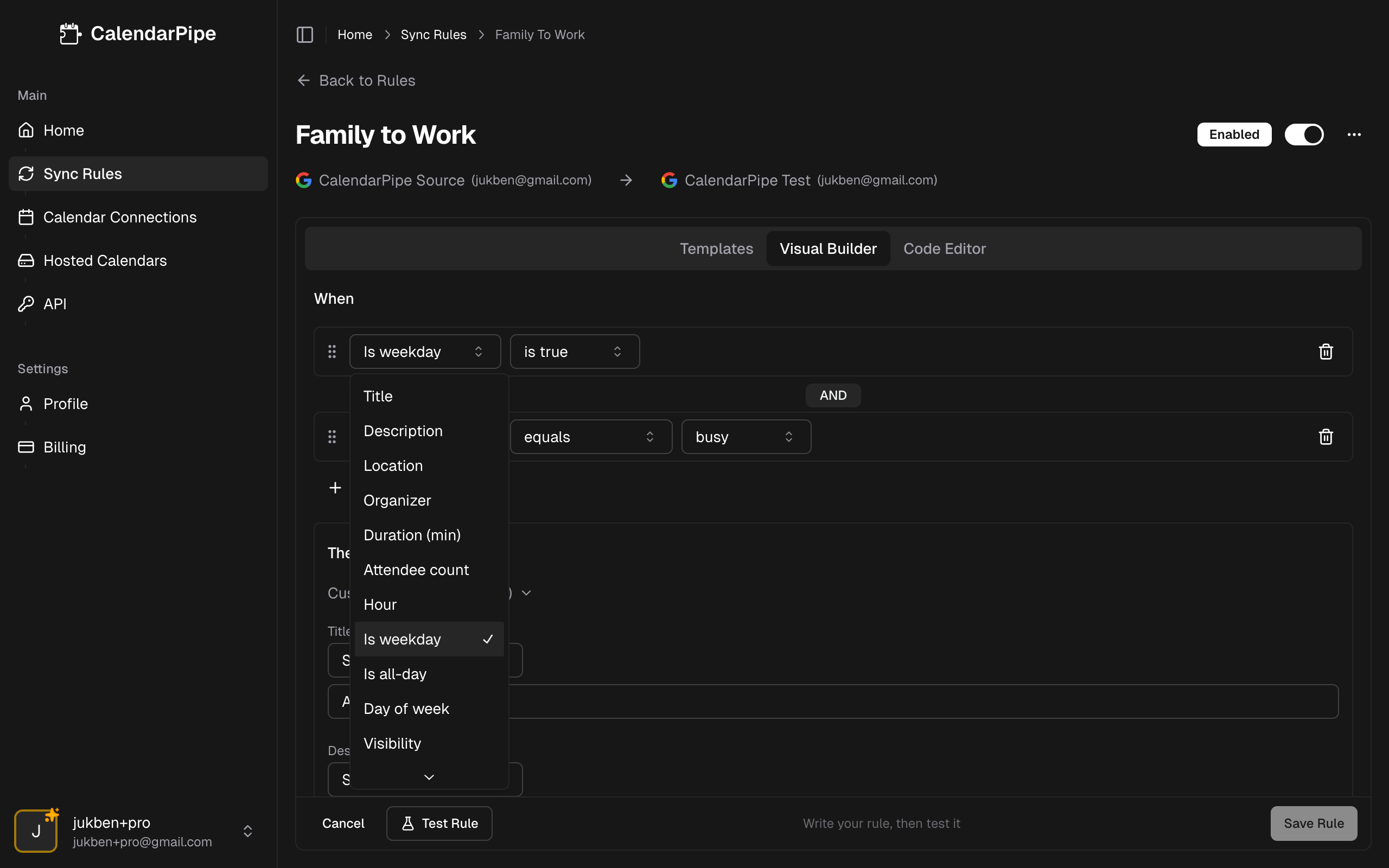
The Visual Builder supports 14 event properties, organized by type:
Text Properties
| Property | Description | Example Values |
|---|---|---|
| Title | Event title/summary | "Team Standup", "Lunch" |
| Description | Event description/notes | "Weekly sync meeting" |
| Location | Event location | "Conference Room A", "Zoom" |
| Organizer | Organizer's email address | "alice@example.com" |
Number Properties
| Property | Description | Example Values |
|---|---|---|
| Duration (min) | Event length in minutes | 30, 60, 120 |
| Attendee count | Number of attendees | 1, 5, 20 |
| Hour | Hour of day the event starts (0-23), in UTC | 9, 14, 17 |
Boolean Properties
| Property | Description | Values |
|---|---|---|
| Is weekday | Whether the event falls on Monday-Friday (in UTC) | true / false |
| Is all-day | Whether the event is an all-day event | true / false |
Time-based properties (Hour, Day of week, Is weekday) are evaluated in UTC, not your local timezone — an info icon next to these properties in the builder is there to remind you. See the property reference for details and examples.
Special Properties
| Property | Type | Values |
|---|---|---|
| Day of week | Day picker | Sunday (0) through Saturday (6) |
| Event status | Enum | Confirmed, Tentative, Cancelled |
| Visibility | Enum | default, public, private |
| Show as | Enum | free, busy |
| My RSVP | Enum | Accepted, Declined, Tentative, Needs action, Organizer |
"Event status" is the event's own lifecycle, set by the organizer for everyone — use it (for example, Event status not equals Cancelled) to keep cancelled events out. "My RSVP" is your response to the event — use it (for example, My RSVP not equals Declined) to keep invitations you haven't accepted off your synced calendar.
Operators Reference
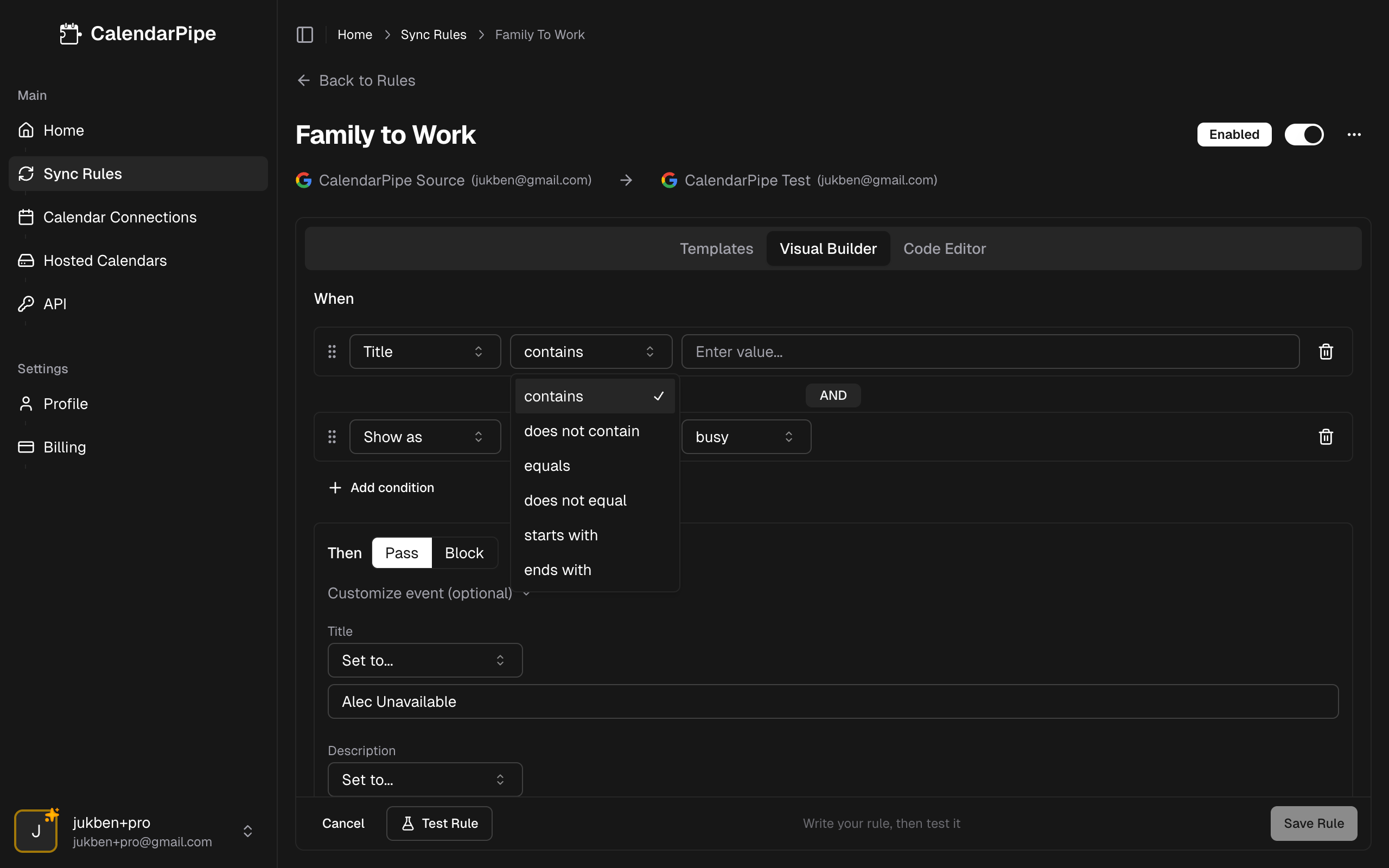
Different property types have different operators available:
Text Operators
| Operator | Description | Example |
|---|---|---|
| contains | Value appears anywhere in the text | Title contains "meeting" |
| not contains | Value does not appear in the text | Title not contains "personal" |
| equals | Exact match | Location equals "Remote" |
| not equals | Does not exactly match | Organizer not equals "bot@example.com" |
| starts with | Text begins with value | Title starts with "[PROJ]" |
| ends with | Text ends with value | Title ends with "(optional)" |
All text matching is case-insensitive. "Meeting", "meeting", and "MEETING" are all equivalent.
Number Operators
| Operator | Description | Example |
|---|---|---|
| equals | Equal to value | Duration equals 30 |
| not equals | Not equal to value | Attendee count not equals 1 |
> | Greater than | Hour > 17 |
< | Less than | Duration < 15 |
>= | Greater than or equal to | Attendee count >= 5 |
<= | Less than or equal to | Hour <= 9 |
Boolean Operators
| Operator | Description | Example |
|---|---|---|
| is true | Property is true | Is weekday is true |
| is false | Property is false | Is all-day is false |
Enum Operators
| Operator | Description | Example |
|---|---|---|
| equals | Matches the selected value | Show as equals "free" |
| not equals | Does not match the selected value | Visibility not equals "private" |
Combinators
When you have multiple conditions, the combinator determines how they're evaluated:
- AND (default) -- All conditions must match for the action to apply
- OR -- Any condition matching triggers the action
For example, with two conditions "Title contains meeting" AND "Is weekday is true":
- A weekday event titled "Team Meeting" -- both conditions match, action applies
- A weekend event titled "Team Meeting" -- only one condition matches, action does NOT apply (with AND)
- A weekday event titled "Lunch" -- only one condition matches, action does NOT apply (with AND)
With OR, the action would apply if either condition matches.
Actions
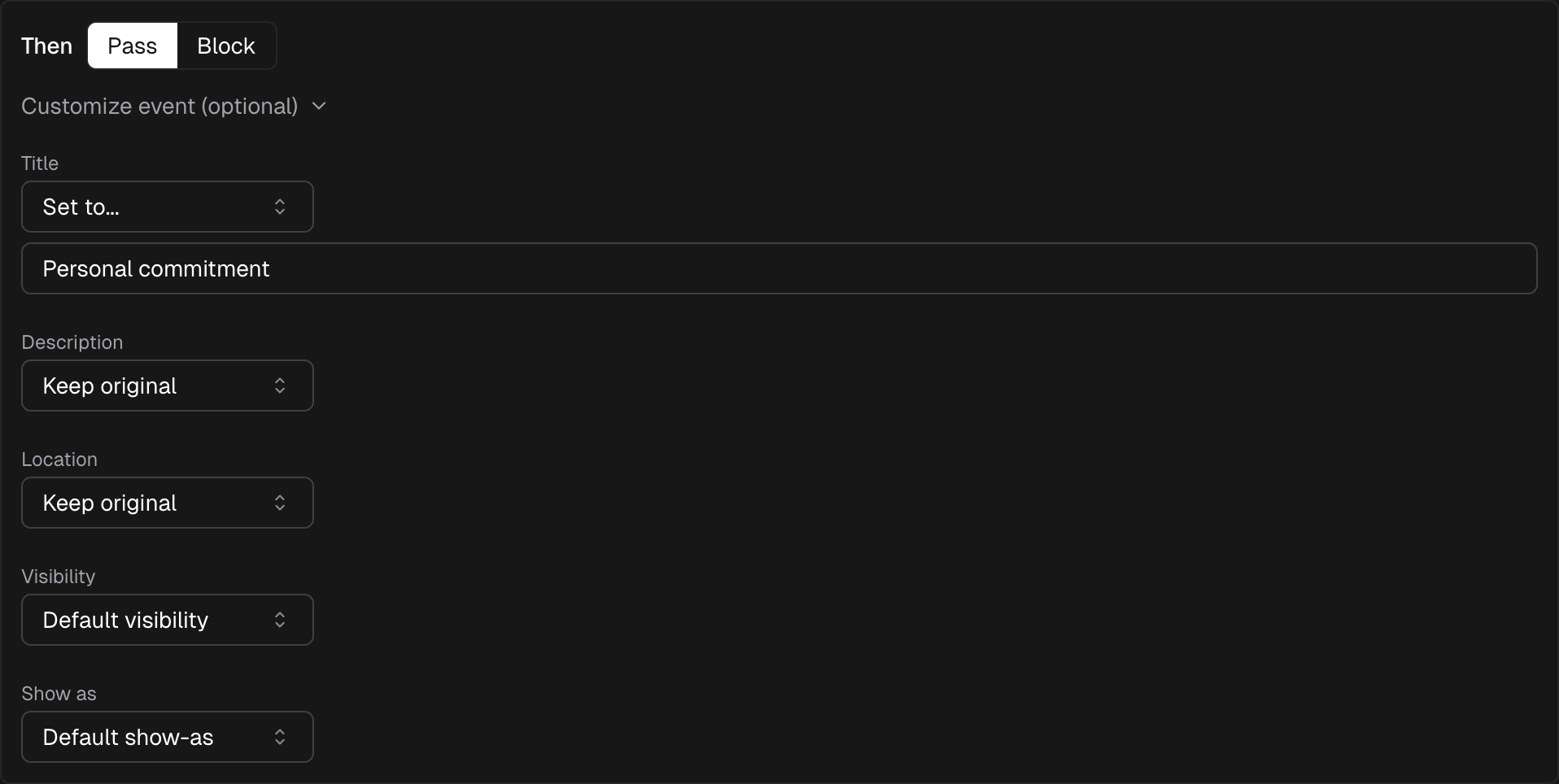
The action defines what happens to events that match your conditions:
Pass or Block
| Action | When conditions match | When conditions don't match |
|---|---|---|
| Pass | Event is synced | Event is blocked |
| Block | Event is blocked | Event is synced |
Optional Transform
When passing events, you can optionally transform them by overriding properties on the synced copy. Each field exposes a mode selector so you can choose between leaving the source value untouched, clearing it, or replacing it with a literal value:
| Field | Modes | Notes |
|---|---|---|
| Title | Keep original / Set to... | Replaces the event title (max 500 characters) |
| Description | Keep original / Clear / Set to... | Replaces or empties the event description (max 5,000 characters) |
| Location | Keep original / Clear / Set to... | Replaces or empties the event location |
| Visibility | Default / Public / Private | "Default" leaves the source visibility untouched |
| Show as | Default / Free / Busy | "Default" leaves the source free/busy status untouched |
| Event colour | Rule default / a colour | Overrides the rule's colour for matching events. Google targets only. |
| Pre-event buffer | Minutes (0–60) | Starts the synced copy earlier so meetings aren't back-to-back. Ignored for all-day events. |
| Post-event buffer | Minutes (0–60) | Ends the synced copy later. Ignored for all-day events. |
Mode reference
- Keep original — the source value passes through unchanged. This is the default for every field.
- Clear — the destination field is written as empty, removing whatever the source had set. Available for Description and Location.
- Set to... — reveals a text input; the value you type replaces the source on the synced copy.
Transforms only apply to the synced copy on the target calendar. The original event on the source calendar is never modified.
Step-by-Step Examples
Example 1: Block Weekend Events
Block events that fall on weekends, only syncing weekday events.
- Click Add Condition
- Select property: Is weekday
- Select operator: is false
- Set action to: Block
- Save
Result: Events on Saturday and Sunday are blocked. Weekday events sync normally.
Example 2: Redact 1-on-1 Meetings
Pass all events, but replace the title of small meetings that look like 1:1s.
- Click Add Condition
- Select property: Attendee count, operator:
<=, value: 2 - Click Add Condition again
- Select property: Title, operator: contains, value: 1:1
- Set combinator to: AND
- Set action to: Pass
- Enable transform, set title to: Meeting
- Save
Result: Events with 2 or fewer attendees AND "1:1" in the title are synced with the title replaced by "Meeting". All other events sync unchanged.
Example 3: Only Sync Long Meetings
Pass events that are 60 minutes or longer, block everything else.
- Click Add Condition
- Select property: Duration (min), operator:
>=, value: 60 - Set action to: Pass
- Save
Result: Only events lasting 1 hour or more are synced. Short events (under 60 minutes) are blocked.
Related
- Templates — start from a preset and customize.
- Code Editor — switch to TypeScript for logic the builder cannot express.
- Property Reference — full list of available event properties.