Account Settings
Your account settings are available from the Settings page in the CalendarPipe sidebar. Here you can update your profile and configure preferences. Your sign-in email, password, and multi-factor authentication have their own page: Security.
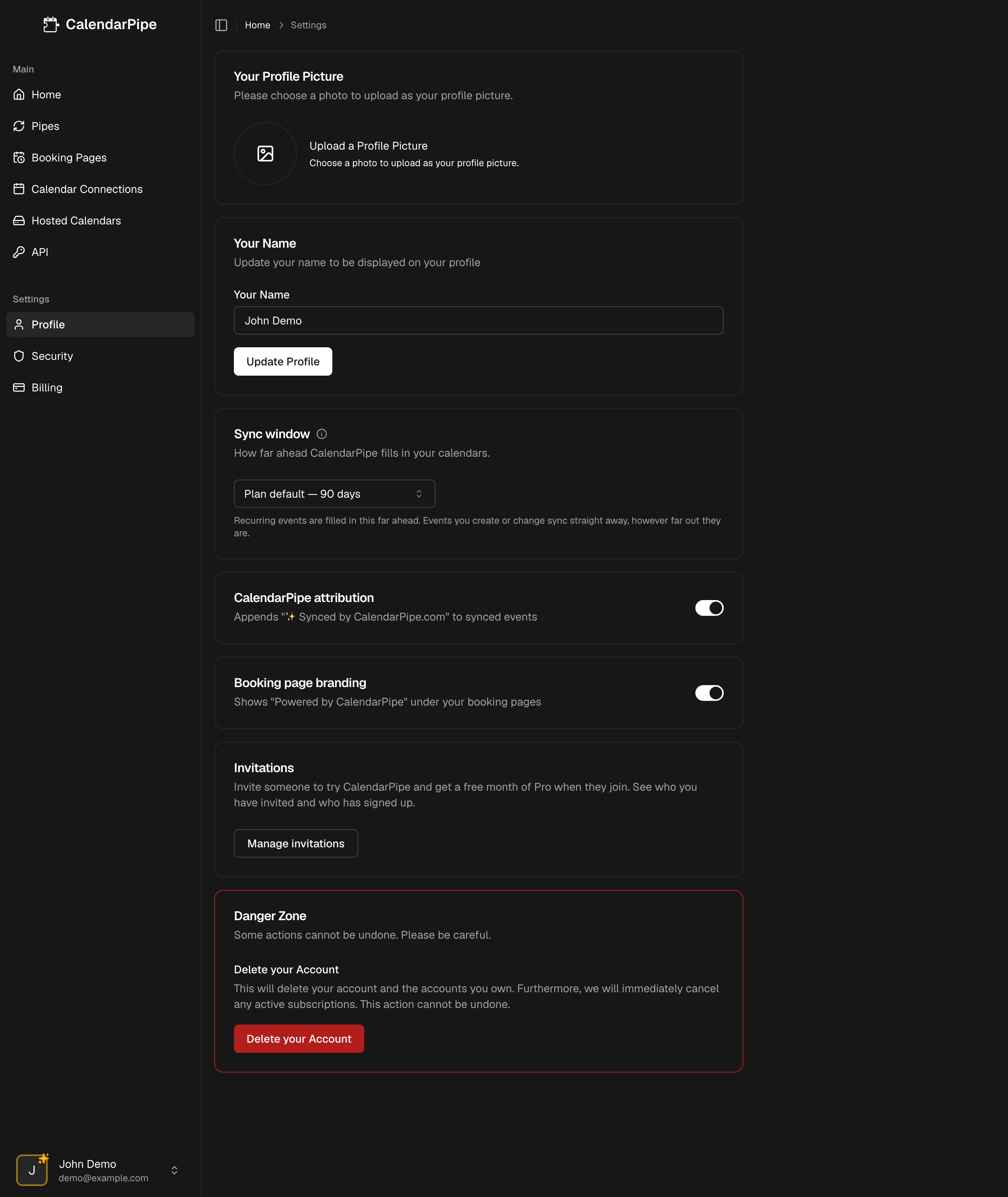
Profile Image
Upload or change your profile avatar. CalendarPipe supports common image formats (JPEG, PNG, GIF, WebP). Your avatar appears in the sidebar and anywhere your profile is displayed.
To update your profile image:
- Go to Settings
- Click on your current avatar or the upload area under Your Profile Picture
- Select an image file from your device
- Your new avatar is saved automatically
Display Name
Update the name displayed on your account. This is the name other users see when you share calendars or send invitations.
To change your display name:
- Go to Settings
- Edit the Your Name field
- Click Update Profile
CalendarPipe Attribution
By default, every event CalendarPipe syncs to a target calendar has a small attribution line appended to its description:
✨ Synced by CalendarPipe.com
This applies to events delivered in both Direct and Invitation mode (see Delivery Modes). The attribution is added after your rule runs, so it is the last thing in the description on the synced copy only -- the source event is never modified.
Turning attribution off
When you upgrade to Pro (including starting a trial), attribution is turned off automatically. You can turn it back on anytime from Settings.
You can also toggle attribution from the CalendarPipe attribution card on the Settings page. New and updated events will be delivered without the attribution line.

Disabling attribution is a Pro plan feature. On the Free plan the toggle is locked on and clicking it prompts you to upgrade. Pro subscribers can switch it on or off at any time.
The setting is account-wide -- it applies to every pipe on your account. Toggling it off does not rewrite events that have already been synced; the change takes effect on the next sync.
Theme
CalendarPipe supports light and dark mode. Open the profile menu at the bottom of the sidebar and choose Theme:
- Light -- Light background with dark text
- Dark -- Dark background with light text
- System -- Automatically matches your operating system's theme preference
Danger Zone -- Delete Account
Permanently delete your CalendarPipe account and all associated data.
Deleting your account is permanent and cannot be undone. All of your data will be permanently removed, including:
- All calendar connections
- All pipes and their rules
- All hosted calendars and their events
- Your account profile and settings
- Your subscription (if active, it will be cancelled immediately)
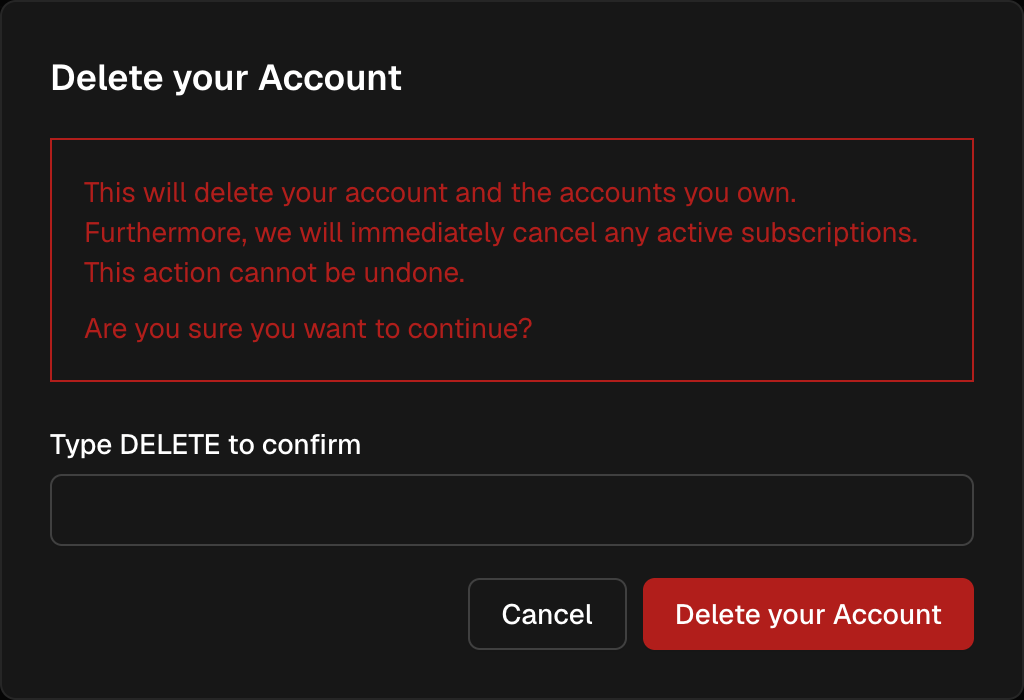
To delete your account:
- Go to Settings
- Scroll to the Danger Zone section at the bottom
- Click Delete your Account
- Optionally tell us why you're leaving, or click Just delete to skip
- Type
DELETEand confirm - Your account and all data will be permanently removed